> ## Documentation Index
> Fetch the complete documentation index at: https://docs.alex.com/llms.txt
> Use this file to discover all available pages before exploring further.
# ATS Sync
> Configure bidirectional syncing between Alex and your ATS for interview decisions and job data.
ATS Sync allows you to keep Alex and your ATS in sync automatically. When a decision changes in Alex, your ATS can be updated, and when statuses change in your ATS, Alex can reflect those changes. This ensures your recruiters always have accurate, up-to-date information regardless of which system they're working in.
There are two types of syncing available:
* **Interview Sync**: Sync interview decisions (Accepted, Rejected, etc.) with your ATS submission statuses
* **Job Sync**: Sync job properties like active/inactive status, job owner, title, and description
## Interview Sync
Interview Sync maps Alex decisions to stages or statuses in your ATS. When you change a decision on an interview in Alex (or vice versa), the corresponding status in your ATS will be updated automatically based on your configuration.
For most ATSs, Interview Sync runs through a Kombo integration — these are marked "via Kombo" in the [Supported ATSs](#supported-atss) table, and the sync needs that integration connected. Tracker, Avionté, JobDiva, Oleeo, RecruitCRM, Salesforce, and TargetRecruit sync through their direct integrations instead. If your sync isn't set up yet, contact [support@alex.com](mailto:support@alex.com) for assistance.
### Available Decisions
You can configure mappings for the following Alex decisions:
| Decision | Description |
| ------------- | ----------------------------------------------- |
| **None** | No decision has been made on the candidate |
| **Accepted** | Candidate has been accepted/shortlisted |
| **Rejected** | Candidate has been rejected |
| **Placed** | Candidate has been placed (common for staffing) |
| **Submitted** | Candidate has been submitted to the client |
| **Hired** | Candidate has been hired |
### Configuring Interview Sync
For each decision, you can configure:
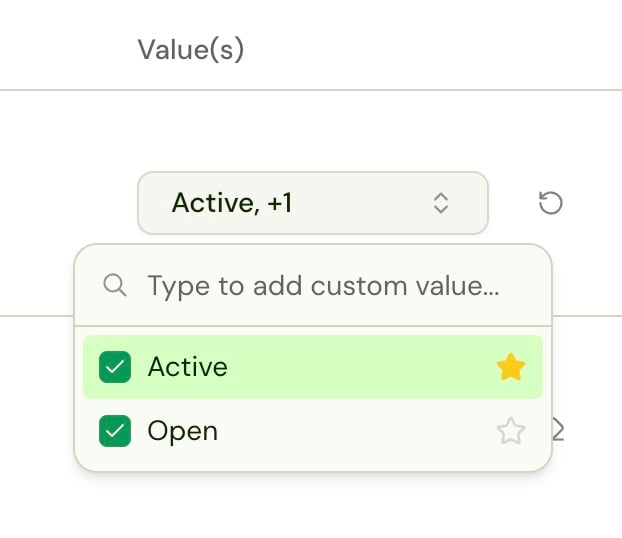
1. **Update Value(s)**: Select one or more ATS stages that correspond to this decision. For example, you might map both "Phone Screen Passed" and "Moved to Interview" stages to the "Accepted" decision in Alex.
2. **Default Value**: If you select multiple ATS stages for a single decision, you must choose a default (favorite) value. This tells Alex which stage to use when updating your ATS. Click the star icon next to a value to set it as the default.
 3. **Sync Direction**: Choose how the sync behaves:
* **Inward** (ATS → Alex): Changes in your ATS are pulled into Alex
* **Outward** (Alex → ATS): Changes in Alex are pushed to your ATS
* **Two-way**: Changes in either system sync to the other
Some ATSs support only one direction (see the [Supported ATSs](#supported-atss) table) — the settings page only offers the directions that work for your ATS.
When mapping multiple ATS stages to a single decision, Alex will recognize any of those stages when syncing inward, but will only use the default value when syncing outward.
### How It Works
**Outward Sync (Alex → ATS)**
When you change a decision on an interview in Alex, the system will update the corresponding submission/candidate status in your ATS to the configured value. If you have multiple values configured, the default (favorited) value will be used.
**Inward Sync (ATS → Alex)**
When a status changes in your ATS, Alex will check if that status matches any of your configured mappings and update the interview decision accordingly.
## Job Sync
Job Sync keeps job-level data synchronized between Alex and your ATS. This includes job status (active/inactive), ownership, titles, and descriptions.
Job Sync is available for most connected ATSs — see the [Supported ATSs](#supported-atss) table below. Contact [support@alex.com](mailto:support@alex.com) if you need this feature for an ATS that isn't listed.
### Available Job Fields
| Field | Description |
| ------------------- | ------------------------------------------------------------ |
| **Active** | Maps ATS field values that indicate a job is active/open |
| **Inactive** | Maps ATS field values that indicate a job is closed/inactive |
| **Job Owner** | Syncs the job owner between systems |
| **Job Title** | Syncs the job title between systems |
| **Job Description** | Syncs the job description between systems |
### Configuring Active/Inactive Status
The Active and Inactive mappings work differently from other fields because jobs in your ATS may use various fields and values to indicate status.
For each status (Active/Inactive):
1. **Field**: Select which field in your ATS indicates the job status (e.g., `isOpen`, `status`)
2. **Value(s)**: Select one or more values that correspond to this status (e.g., for Active: `Open`, `Published`, `Accepting Candidates`)
3. **Default Value**: If multiple values are selected, choose which one Alex should use when updating your ATS
4. **Sync Direction**: Configure whether changes sync inward, outward, or both ways
You can add multiple field mappings for Active or Inactive status if your ATS uses multiple fields to determine job status. Click "Add new Active mapping" to add additional mappings.
### Configuring Job Owner, Title, and Description
These fields are simpler one-to-one mappings:
1. **Field**: Select which field in your ATS corresponds to this value
2. **Sync Direction**: Configure the sync direction
3. **Toggle**: Enable or disable syncing for each field using the switch
Common field mappings:
* **Job Owner**: `owner`, `CONTACTID`
* **Job Title**: `title`, `JOBTITLE`, `POSTING_TITLE`
* **Job Description**: `description`, `JOBDESCRIPTION`, `POSTINGDESCRIPTION`
Some ATSs support custom field mappings. If you don't see the field you need in the dropdown, you can type a custom field name.
## Best Practices
1. **Start with Outward Sync**: When first setting up, consider starting with outward-only sync to ensure your mappings are correct before enabling bidirectional syncing.
2. **Test with a Single Job**: Before applying sync settings broadly, test your configuration with a single job to verify the behavior matches your expectations.
3. **Use Descriptive Mappings**: When mapping multiple ATS values to a single decision, choose a clear default value that makes sense for your workflow.
4. **Coordinate with Your Team**: Make sure your recruiting team understands which system is the "source of truth" for different data points based on your sync direction settings.
## Troubleshooting
**Changes aren't syncing**
* Verify the sync direction is configured correctly for your use case
* Check that the mapping has values configured (Status should show "Configured")
* Ensure your Kombo integration is active (for Interview Sync)
**Wrong status being set in ATS**
* If you have multiple values mapped, verify the correct default (favorite) is selected
* Check that the field mapping matches the actual field name in your ATS
**Interview Sync not available**
* For "via Kombo" ATSs, Interview Sync requires a connected Kombo integration. Contact [support@alex.com](mailto:support@alex.com) to set this up.
* Some ATSs don't support disposition syncing (see the table below). Contact support for compatibility information.
**Job Sync not available**
* Job Sync isn't available for every ATS — see the table below.
* Contact [support@alex.com](mailto:support@alex.com) for information about support for other ATSs.
## Supported ATSs
| ATS | Interview Sync | Job Sync |
| ------------------ | :--------------: | :------: |
| Ashby | ✅ (via Kombo) | ❌ |
| Avionté | ✅ | ✅ |
| Bullhorn | ✅ (via Kombo) | ✅ |
| Dayforce | ❌ | ✅ |
| Greenhouse | ✅ (via Kombo) | ✅ |
| JobDiva | ✅ (outward only) | ✅ |
| Lever | ✅ (via Kombo) | ✅ |
| Manatal | ✅ (via Kombo) | ❌ |
| Oleeo | ✅ | ❌ |
| RecruitCRM | ✅ | ✅ |
| Salesforce | ✅ (inward only) | ✅ |
| SAP SuccessFactors | ✅ (via Kombo) | ✅ |
| SmartRecruiters | ✅ (via Kombo) | ✅ |
| TargetRecruit | ✅ (inward only) | ❌ |
| Teamtailor | ✅ (via Kombo) | ✅ |
| Tracker | ✅ | ✅ |
| UKG Pro | ✅ (via Kombo) | ✅ |
| Workday | ✅ (via Kombo) | ✅ |
**Direction restrictions.** JobDiva supports outward Interview Sync only (Alex → JobDiva): JobDiva doesn't send submittal status changes back, so inward mappings aren't offered. Salesforce and TargetRecruit are the mirror case — Alex polls the submission object for status changes, so Interview Sync is inward only (ATS → Alex).
3. **Sync Direction**: Choose how the sync behaves:
* **Inward** (ATS → Alex): Changes in your ATS are pulled into Alex
* **Outward** (Alex → ATS): Changes in Alex are pushed to your ATS
* **Two-way**: Changes in either system sync to the other
Some ATSs support only one direction (see the [Supported ATSs](#supported-atss) table) — the settings page only offers the directions that work for your ATS.
When mapping multiple ATS stages to a single decision, Alex will recognize any of those stages when syncing inward, but will only use the default value when syncing outward.
### How It Works
**Outward Sync (Alex → ATS)**
When you change a decision on an interview in Alex, the system will update the corresponding submission/candidate status in your ATS to the configured value. If you have multiple values configured, the default (favorited) value will be used.
**Inward Sync (ATS → Alex)**
When a status changes in your ATS, Alex will check if that status matches any of your configured mappings and update the interview decision accordingly.
## Job Sync
Job Sync keeps job-level data synchronized between Alex and your ATS. This includes job status (active/inactive), ownership, titles, and descriptions.
Job Sync is available for most connected ATSs — see the [Supported ATSs](#supported-atss) table below. Contact [support@alex.com](mailto:support@alex.com) if you need this feature for an ATS that isn't listed.
### Available Job Fields
| Field | Description |
| ------------------- | ------------------------------------------------------------ |
| **Active** | Maps ATS field values that indicate a job is active/open |
| **Inactive** | Maps ATS field values that indicate a job is closed/inactive |
| **Job Owner** | Syncs the job owner between systems |
| **Job Title** | Syncs the job title between systems |
| **Job Description** | Syncs the job description between systems |
### Configuring Active/Inactive Status
The Active and Inactive mappings work differently from other fields because jobs in your ATS may use various fields and values to indicate status.
For each status (Active/Inactive):
1. **Field**: Select which field in your ATS indicates the job status (e.g., `isOpen`, `status`)
2. **Value(s)**: Select one or more values that correspond to this status (e.g., for Active: `Open`, `Published`, `Accepting Candidates`)
3. **Default Value**: If multiple values are selected, choose which one Alex should use when updating your ATS
4. **Sync Direction**: Configure whether changes sync inward, outward, or both ways
You can add multiple field mappings for Active or Inactive status if your ATS uses multiple fields to determine job status. Click "Add new Active mapping" to add additional mappings.
### Configuring Job Owner, Title, and Description
These fields are simpler one-to-one mappings:
1. **Field**: Select which field in your ATS corresponds to this value
2. **Sync Direction**: Configure the sync direction
3. **Toggle**: Enable or disable syncing for each field using the switch
Common field mappings:
* **Job Owner**: `owner`, `CONTACTID`
* **Job Title**: `title`, `JOBTITLE`, `POSTING_TITLE`
* **Job Description**: `description`, `JOBDESCRIPTION`, `POSTINGDESCRIPTION`
Some ATSs support custom field mappings. If you don't see the field you need in the dropdown, you can type a custom field name.
## Best Practices
1. **Start with Outward Sync**: When first setting up, consider starting with outward-only sync to ensure your mappings are correct before enabling bidirectional syncing.
2. **Test with a Single Job**: Before applying sync settings broadly, test your configuration with a single job to verify the behavior matches your expectations.
3. **Use Descriptive Mappings**: When mapping multiple ATS values to a single decision, choose a clear default value that makes sense for your workflow.
4. **Coordinate with Your Team**: Make sure your recruiting team understands which system is the "source of truth" for different data points based on your sync direction settings.
## Troubleshooting
**Changes aren't syncing**
* Verify the sync direction is configured correctly for your use case
* Check that the mapping has values configured (Status should show "Configured")
* Ensure your Kombo integration is active (for Interview Sync)
**Wrong status being set in ATS**
* If you have multiple values mapped, verify the correct default (favorite) is selected
* Check that the field mapping matches the actual field name in your ATS
**Interview Sync not available**
* For "via Kombo" ATSs, Interview Sync requires a connected Kombo integration. Contact [support@alex.com](mailto:support@alex.com) to set this up.
* Some ATSs don't support disposition syncing (see the table below). Contact support for compatibility information.
**Job Sync not available**
* Job Sync isn't available for every ATS — see the table below.
* Contact [support@alex.com](mailto:support@alex.com) for information about support for other ATSs.
## Supported ATSs
| ATS | Interview Sync | Job Sync |
| ------------------ | :--------------: | :------: |
| Ashby | ✅ (via Kombo) | ❌ |
| Avionté | ✅ | ✅ |
| Bullhorn | ✅ (via Kombo) | ✅ |
| Dayforce | ❌ | ✅ |
| Greenhouse | ✅ (via Kombo) | ✅ |
| JobDiva | ✅ (outward only) | ✅ |
| Lever | ✅ (via Kombo) | ✅ |
| Manatal | ✅ (via Kombo) | ❌ |
| Oleeo | ✅ | ❌ |
| RecruitCRM | ✅ | ✅ |
| Salesforce | ✅ (inward only) | ✅ |
| SAP SuccessFactors | ✅ (via Kombo) | ✅ |
| SmartRecruiters | ✅ (via Kombo) | ✅ |
| TargetRecruit | ✅ (inward only) | ❌ |
| Teamtailor | ✅ (via Kombo) | ✅ |
| Tracker | ✅ | ✅ |
| UKG Pro | ✅ (via Kombo) | ✅ |
| Workday | ✅ (via Kombo) | ✅ |
**Direction restrictions.** JobDiva supports outward Interview Sync only (Alex → JobDiva): JobDiva doesn't send submittal status changes back, so inward mappings aren't offered. Salesforce and TargetRecruit are the mirror case — Alex polls the submission object for status changes, so Interview Sync is inward only (ATS → Alex).