> ## Documentation Index
> Fetch the complete documentation index at: https://docs.alex.com/llms.txt
> Use this file to discover all available pages before exploring further.
# Loxo
Connecting with Loxo helps you save time by automatically importing jobs and candidates, then inviting those candidates to interviews without any manual effort.
#### How the Integration Works
* **Automatic Interview Generation**: For each new job you create in Loxo, an interview is automatically created in Alex using the information from your job description.
* **Automatic Interview Invites**: When candidates apply for a job in Loxo, Alex automatically sends them an email invitation and handles all the interview scheduling.
***
### Set up the Loxo Integration
Follow these steps to connect your Loxo account.
#### 1. Get Your Loxo Credentials
You will need three pieces of information from your Loxo account: an `API Agency Slug`, `API Domain`, and an `API Key`.
To get the Agency Slug and Domain, you will need to email Loxo Support to have them create an API account for the integration. You can use the template below:
> I'm working with a Developer partner, Alex, and would like to turn their integration on in my Loxo account.
>
> Could you please create an API user for Alex and share the following information with me?
>
> * API agency\_slug
> * API domain
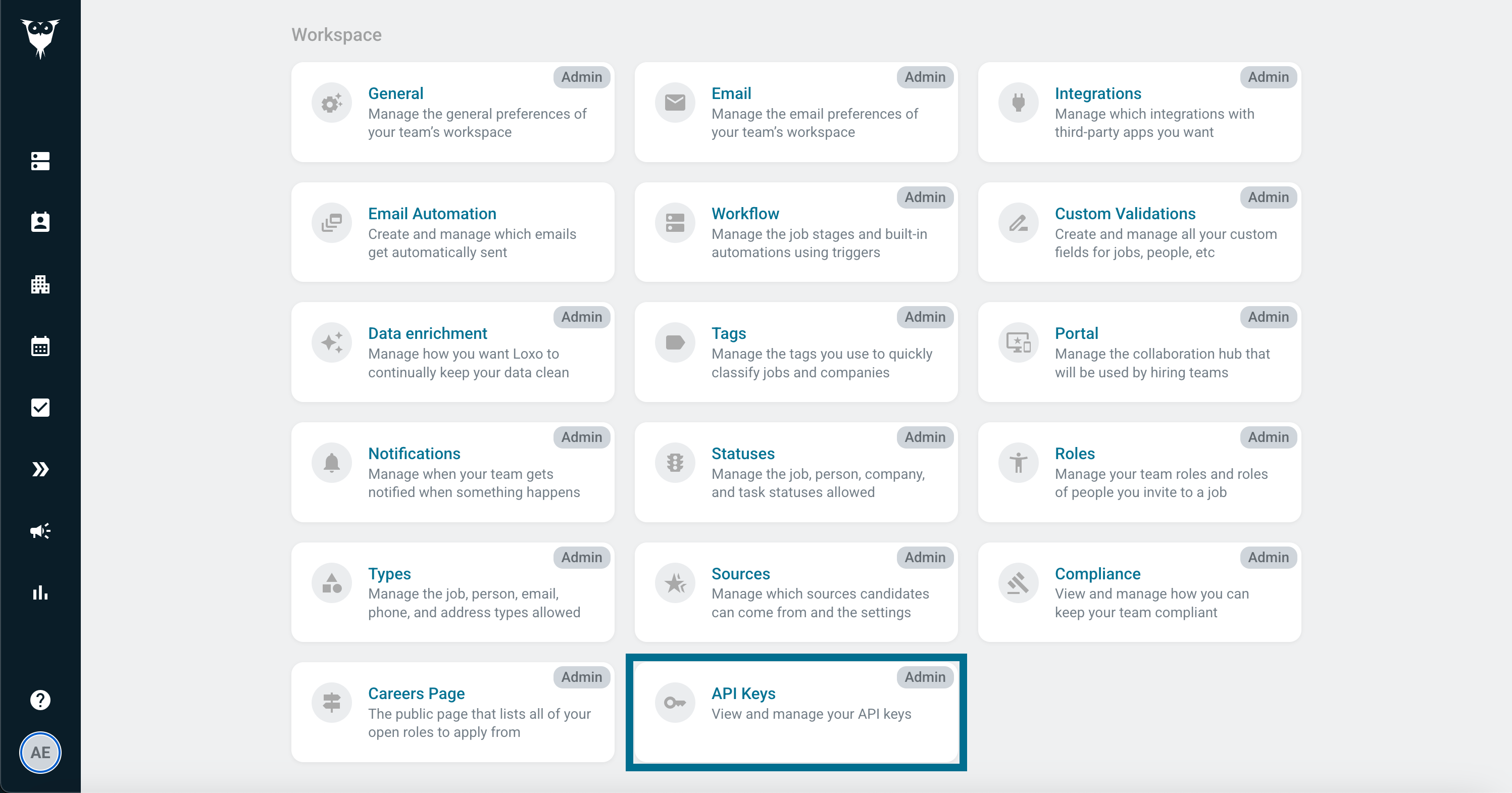
Once you receive the `API domain` from Loxo, sign in to that domain and create an `API Key` from the **Settings > API Keys** page.
 #### 2. Enter Your Credentials in Alex
After you have your credentials, you can enter them into the Alex dashboard.
1. Navigate to **Settings > Integrations**.
2. Select **Loxo**.
3. Enter your **Loxo API Key**, **Loxo Domain**, and **Loxo Agency Slug** into the corresponding fields.
4. Click **Save**.
#### 2. Enter Your Credentials in Alex
After you have your credentials, you can enter them into the Alex dashboard.
1. Navigate to **Settings > Integrations**.
2. Select **Loxo**.
3. Enter your **Loxo API Key**, **Loxo Domain**, and **Loxo Agency Slug** into the corresponding fields.
4. Click **Save**.
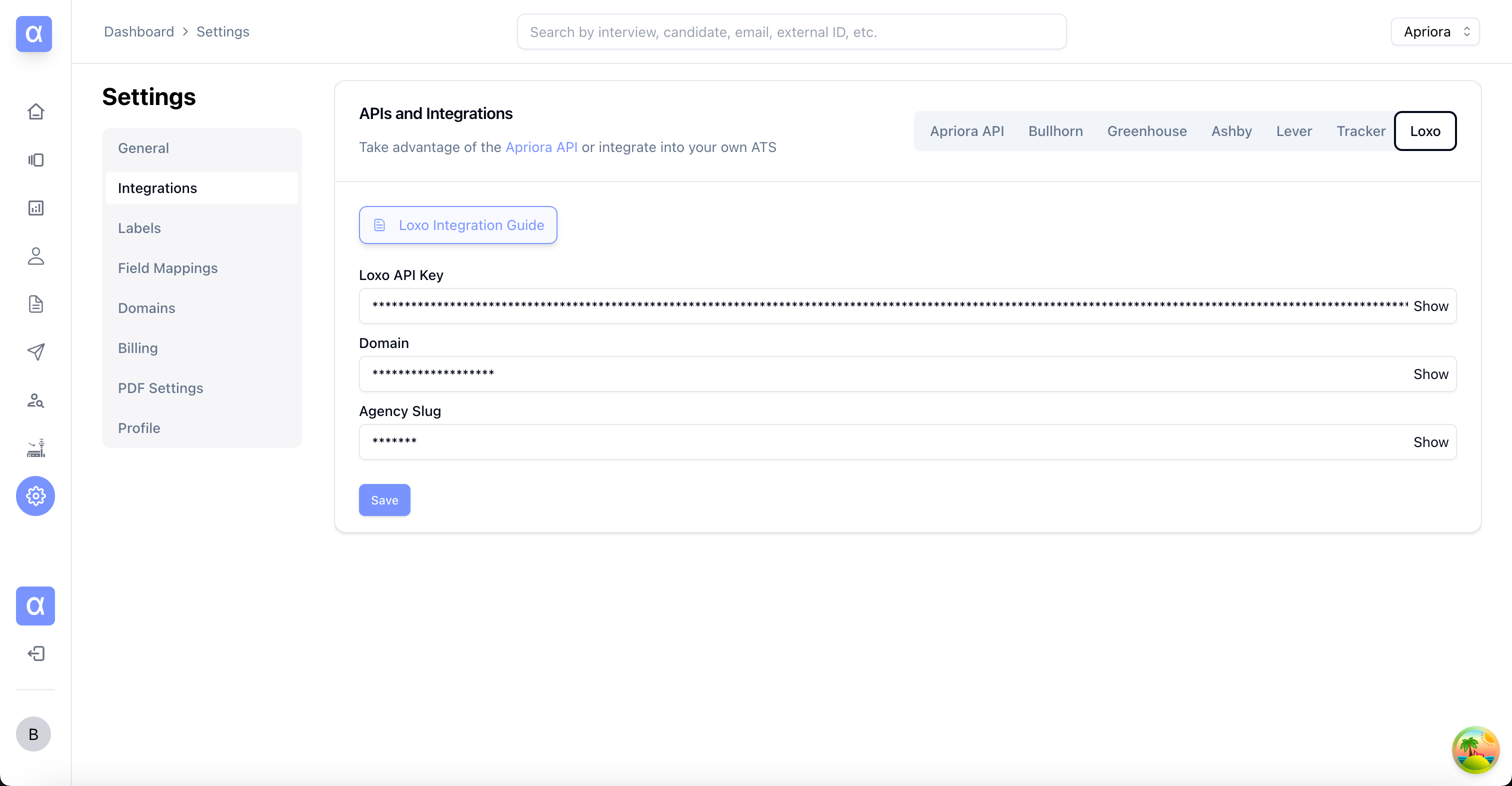 **Note:** When entering your Loxo Domain, be sure to include the full domain, such as `app.loxo.co`.