> ## Documentation Index
> Fetch the complete documentation index at: https://docs.alex.com/llms.txt
> Use this file to discover all available pages before exploring further.
# Recruiter Workflow
> Invite Candidates to Alex Interviews from Workday
## Overview
Alex's Integration with Workday allows recruiters to directly invite candidates within the Workday Recruiting portal to take our AI interviews. This integration allows for automated scheduling and real-time syncing of interview results and insights back into Workday.
This guide walks through how to send Alex interview invitations from Workday, and how the reports sync back to your Workday instance.
### Prerequisites
* In Alex, you must have a Workday integration enabled
* In Workday, you must be logged into an account with access to Workday Recruiting and relevant permissions
## Configuring Interviews
For each Job Requisition that you want to send interviews to candidates for, you need to make sure that you have an Interview in Alex that is connected to that Job Requisition.
You can only have one Interview connected to one Job Requisition at a time. So for each Job you want to send Alex Interviews for, you will need a seperate Interview created in Alex.
To connect a Job Requisition to an Alex Interview, you need to set the **External ID** of the Interview in Alex to the the **Job Requisition ID**. You can set this while creating the interview, and edit it for an existing interview.
 * In Alex, go to the Interview you want to use for a particular Job.
* Go into the **Settings** Tab, and go into the **Advanced** section.
* Get the Job Requesition ID (`R-XXXXX`). Paste in the number after `R-` into the **External ID** field.
* Click **Save** to connect the Interview to the Job Requisition
## Inviting Candidates
In **Workday Recruiting**, search for any open Job Requisition that has an interview attached to it in Alex. You can do this using the **View Job Requisition** report.
* In Alex, go to the Interview you want to use for a particular Job.
* Go into the **Settings** Tab, and go into the **Advanced** section.
* Get the Job Requesition ID (`R-XXXXX`). Paste in the number after `R-` into the **External ID** field.
* Click **Save** to connect the Interview to the Job Requisition
## Inviting Candidates
In **Workday Recruiting**, search for any open Job Requisition that has an interview attached to it in Alex. You can do this using the **View Job Requisition** report.
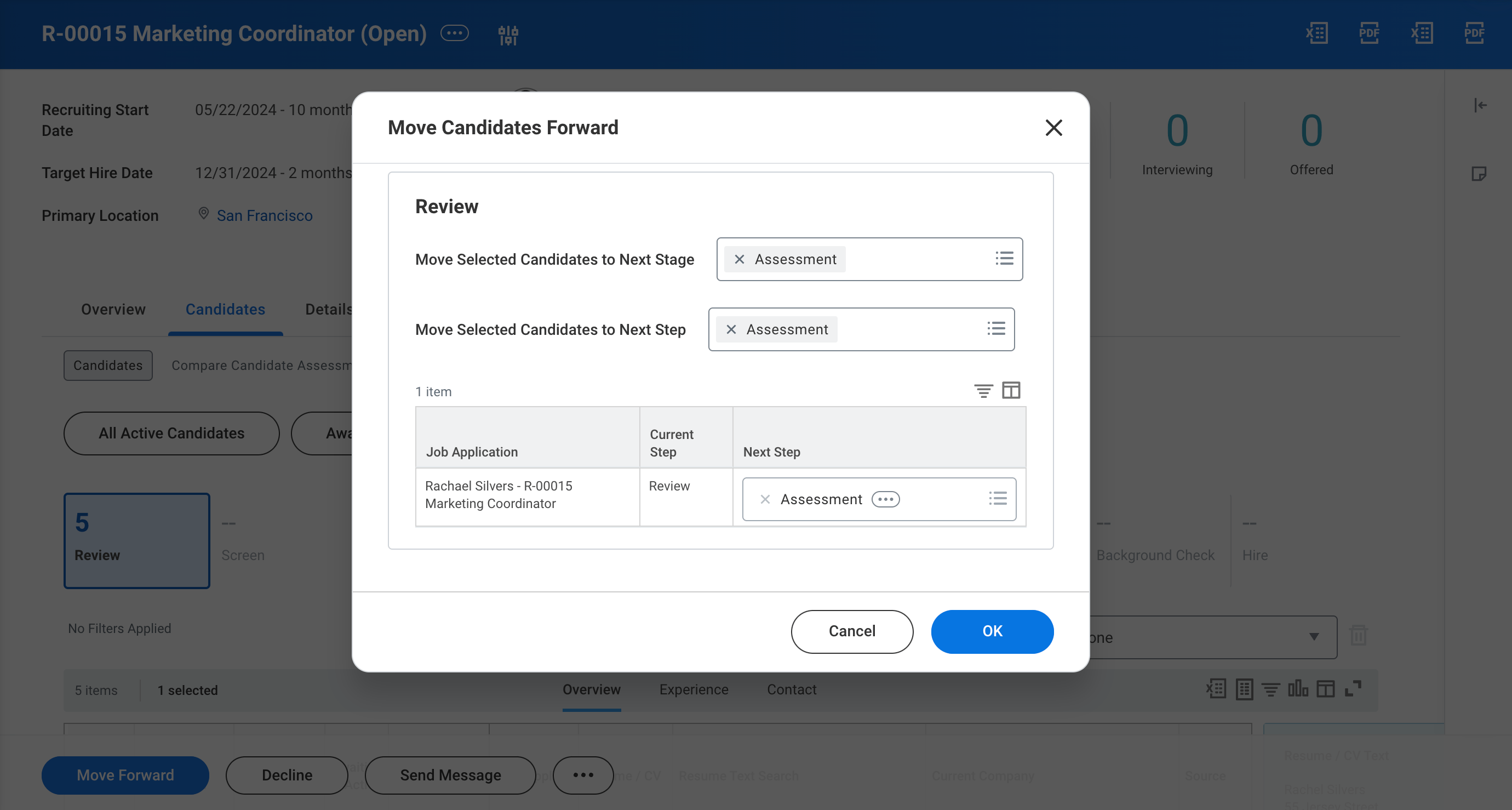 * Once you are in the Job Requisition page, click into the **Candidates** tab.
* Choose the candidate you want to invite for an Alex interview. The selected candidate's **Step / Disposition** needs to be `Review`.
* Click the **Move Forward** button.
* Make sure the **Move Selected Candidates to Next Stage** field is set to `Assessment`.
* Make sure the **Move Selected Candidates to Next Step** field is set to `Assessment`.
* Click **OK** to move the candidate to the Assessment state.
* Once you are in the Job Requisition page, click into the **Candidates** tab.
* Choose the candidate you want to invite for an Alex interview. The selected candidate's **Step / Disposition** needs to be `Review`.
* Click the **Move Forward** button.
* Make sure the **Move Selected Candidates to Next Stage** field is set to `Assessment`.
* Make sure the **Move Selected Candidates to Next Step** field is set to `Assessment`.
* Click **OK** to move the candidate to the Assessment state.
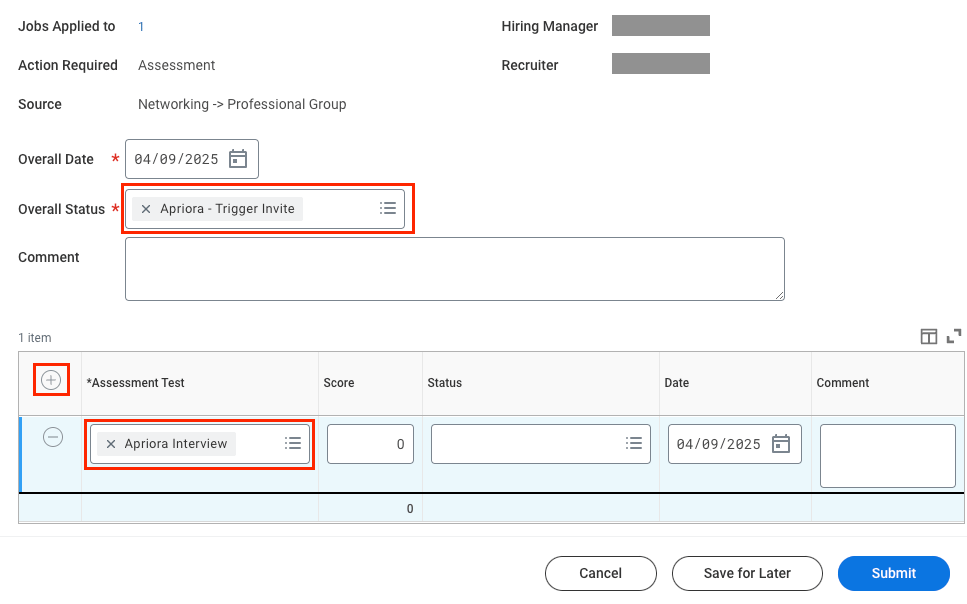 * After moving the candidate to the Assessment state, open the new **Assess Candidate** inbox entry.
* Set the **Overall Date** to the current date.
* Set the **Overall Status** to be `Alex - Trigger Invite`.
* Add an Assessment in the table at the bottom, by selecting **Alex Interview** from the lists of available Assessments.
* Click **Submit** to initiate the Assessment for the candidate.
## Status Progression
When the **Overall Status** is `Alex - Trigger Invite` this tells Alex to invite this Candidate. Alex checks for invitations to send out every 10 minutes.
If the Job Requisition doesn't have a related Interview in Alex, the **Overall
Status** will be set to`Alex - Error`. A recruiter can recover from this
state, by connecting an Interview in Alex to a Job Requisition and updating
status back to`Alex - Trigger Invite`
Once the invitation gets sent, the **Overall Status** is updated to `Alex - Triggered`, and the **Assessment Status** is set to `Alex - Invite Sent`.
If your Messaging is configured to send out the Scheduling link, once the Candidate schedules their interview, the **Assessment Status** is updated to `Alex - Interview Scheduled`. The comment will include when the interview is scheduled for. If a candidate misses their scheduled interview, their status will be set to `Alex - Interview Missed`.
A candidate who doesn't complete their interview within 96 hours of starting it, will be marked as `INCOMPLETE` in Alex, and the **Assessment Status** will be set to `Alex - Interview Incomplete`.
When the candidate completes the interview and it gets evaluated, the **Assessment Status** is updated to `Alex - Interview Complete`.
At this point Assessment Test will be visible with:
* **Status**: `Alex - Interview Complete`
* **Score**: The overall score (0-100)
* **Comment**: The overall feedback from the interview
* **Results URL**: Link to the candidate's report within Alex. You must have an Alex account to access this report.
A recruiter can additionally Shortlist and Reject candidates from Alex, which will automatically update the **Assessment Status** in Workday to one of the following:
* `Alex - Shortlisted`
* `Alex - Rejected`
* After moving the candidate to the Assessment state, open the new **Assess Candidate** inbox entry.
* Set the **Overall Date** to the current date.
* Set the **Overall Status** to be `Alex - Trigger Invite`.
* Add an Assessment in the table at the bottom, by selecting **Alex Interview** from the lists of available Assessments.
* Click **Submit** to initiate the Assessment for the candidate.
## Status Progression
When the **Overall Status** is `Alex - Trigger Invite` this tells Alex to invite this Candidate. Alex checks for invitations to send out every 10 minutes.
If the Job Requisition doesn't have a related Interview in Alex, the **Overall
Status** will be set to`Alex - Error`. A recruiter can recover from this
state, by connecting an Interview in Alex to a Job Requisition and updating
status back to`Alex - Trigger Invite`
Once the invitation gets sent, the **Overall Status** is updated to `Alex - Triggered`, and the **Assessment Status** is set to `Alex - Invite Sent`.
If your Messaging is configured to send out the Scheduling link, once the Candidate schedules their interview, the **Assessment Status** is updated to `Alex - Interview Scheduled`. The comment will include when the interview is scheduled for. If a candidate misses their scheduled interview, their status will be set to `Alex - Interview Missed`.
A candidate who doesn't complete their interview within 96 hours of starting it, will be marked as `INCOMPLETE` in Alex, and the **Assessment Status** will be set to `Alex - Interview Incomplete`.
When the candidate completes the interview and it gets evaluated, the **Assessment Status** is updated to `Alex - Interview Complete`.
At this point Assessment Test will be visible with:
* **Status**: `Alex - Interview Complete`
* **Score**: The overall score (0-100)
* **Comment**: The overall feedback from the interview
* **Results URL**: Link to the candidate's report within Alex. You must have an Alex account to access this report.
A recruiter can additionally Shortlist and Reject candidates from Alex, which will automatically update the **Assessment Status** in Workday to one of the following:
* `Alex - Shortlisted`
* `Alex - Rejected`