Overview
Our Bullhorn integration allows you to see your interviews and reports directly in your Bullhorn dashboard. Candidate and Job entities will have ‘Alex’ Custom Tabs where you can see data per record. Upon integration, candidates that complete an interview, will have a note added to their Candidate Record with the report summary. Reach out to support if you’re interested in populating candidate fields with report results.Steps to Integrate:
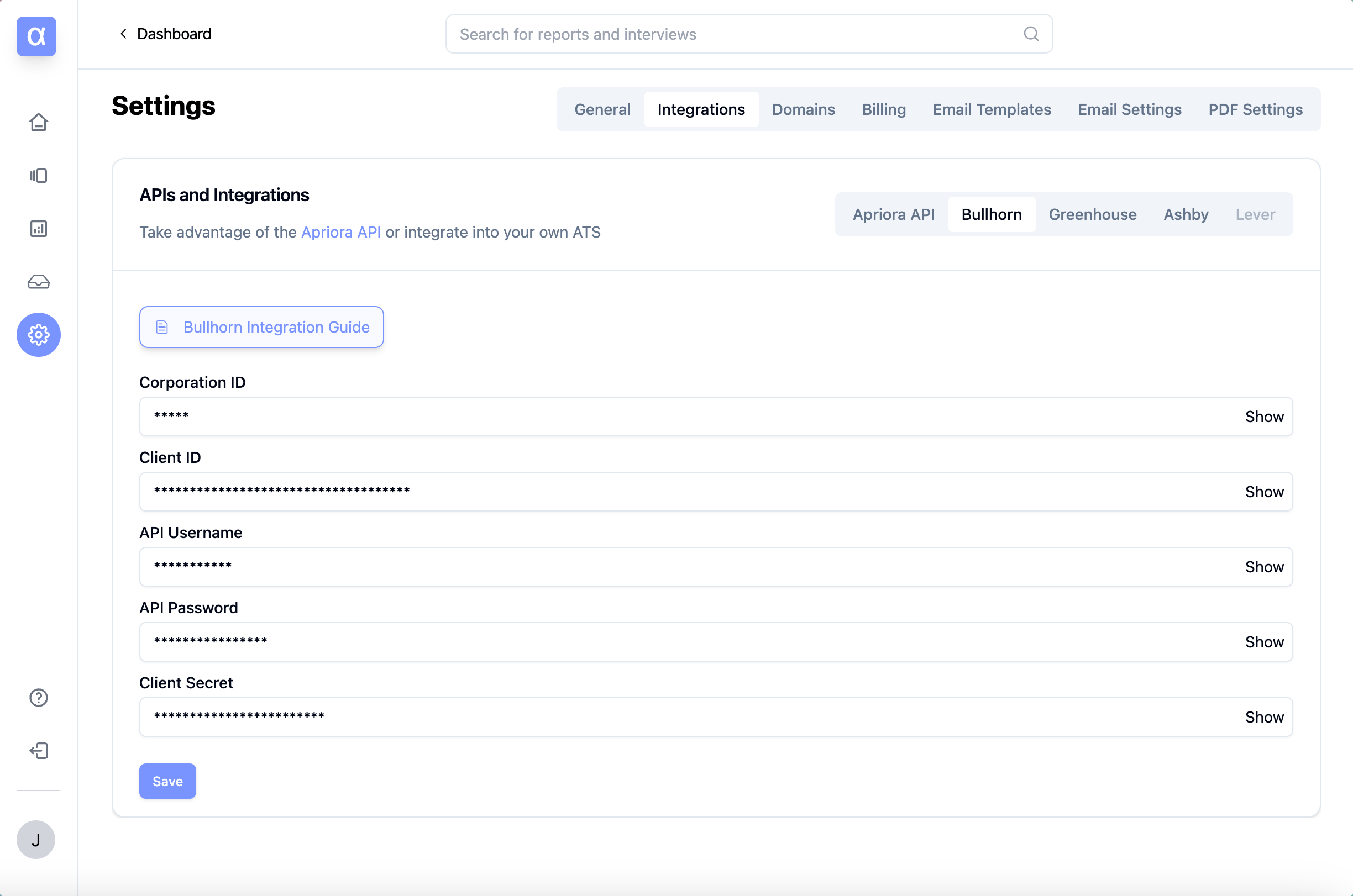
1. Retrieve credentials
The first thing you need to do is send an email to your Bullhorn Support for them to create an API account for Alex. You can use the following template:- Log into Bullhorn and navigate to menu > admin > users
- Locate the username listed above in your userlist and open the user record.
- Generate a new password for the user and save it as the API Password for the next step.
2. Setup Custom Tabs
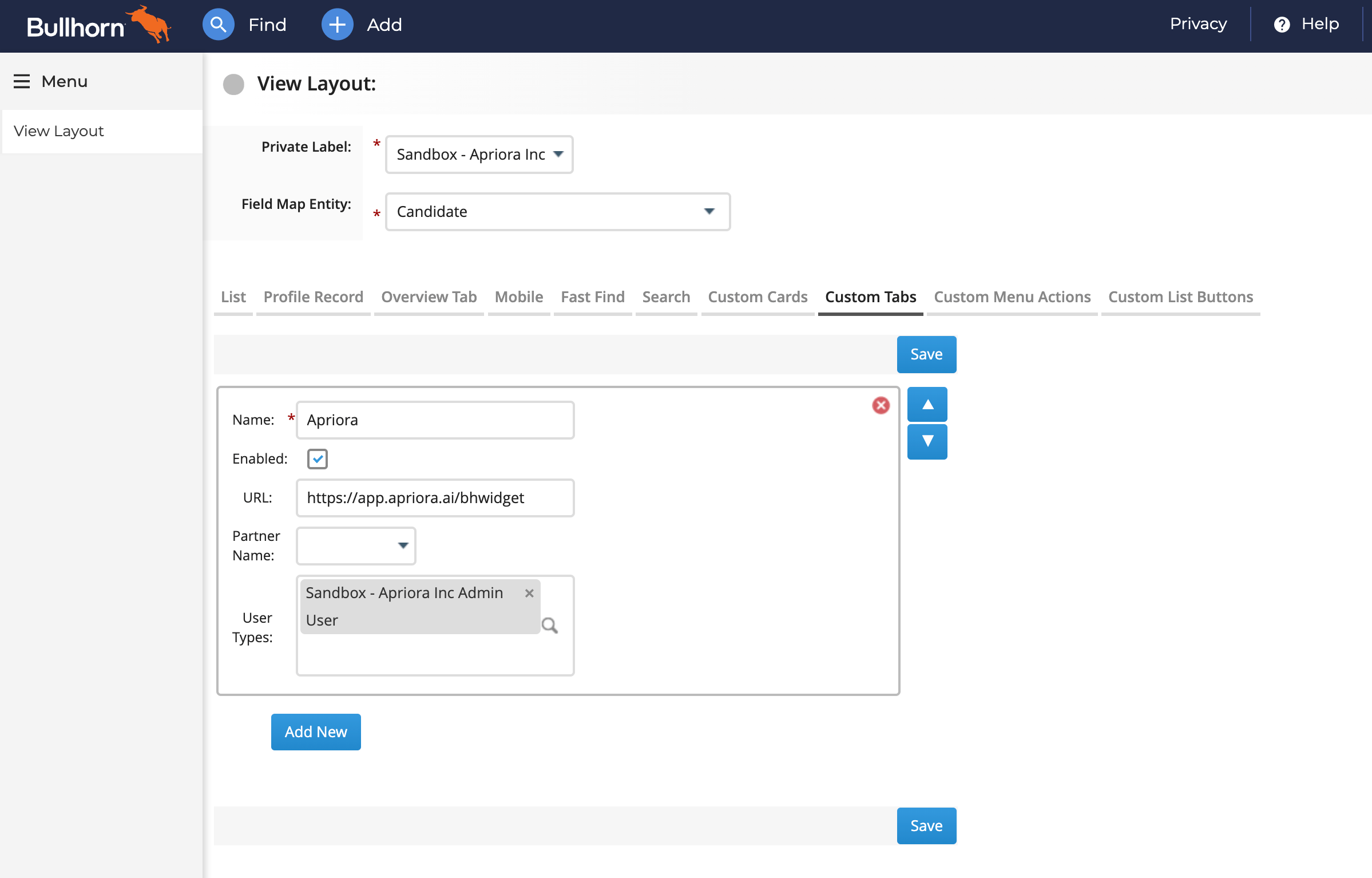
You need to add Alex as custom tabs in the Admin settings of Bullhorn to make them visible. In Bullhorn, go into Admin > View Layout.- Select the
CandidateField Map Entity and go into theCustom Tabstab. - Click Add New. The name for the tab should be
Alexand the URL should behttps://app.alex.com/bhwidget. Make sure it is enabled. - Add all the User Types you want to be able to see these Custom Tabs. Note that if you don’t select any User Types, the tabs won’t be visible for anyone.
- Click Save. You just added Custom Tabs for Candidate entities!
- Select the
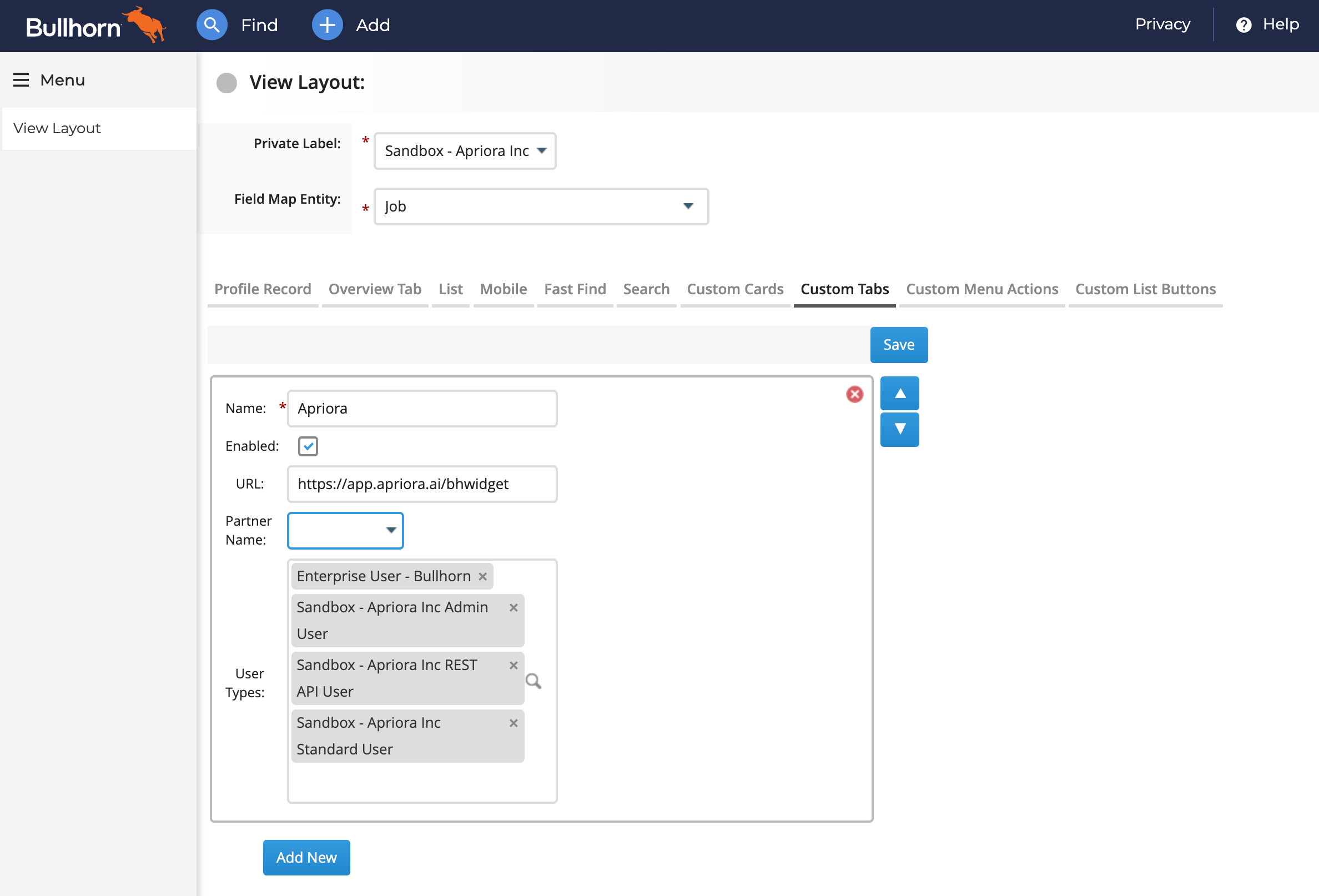
JobField Map Entity and go into theCustom Tabstab. - Click Add New. The name for the tab should be
Alexand the URL should behttps://app.alex.com/bhwidget. Make sure it is enabled. - Add all the User Types you want to be able to see these Custom Tabs. Note that if you don’t select any User Types, the tabs won’t be visible for anyone.
- Click Save. You just added Custom Tabs for Job entities!