

Set Up Your AI Interview
Follow these steps to build and customize your AI interview from start to finish.Step 1: Choose Your Starting Point
Navigate to the Jobs page to see all your existing positions and create new ones.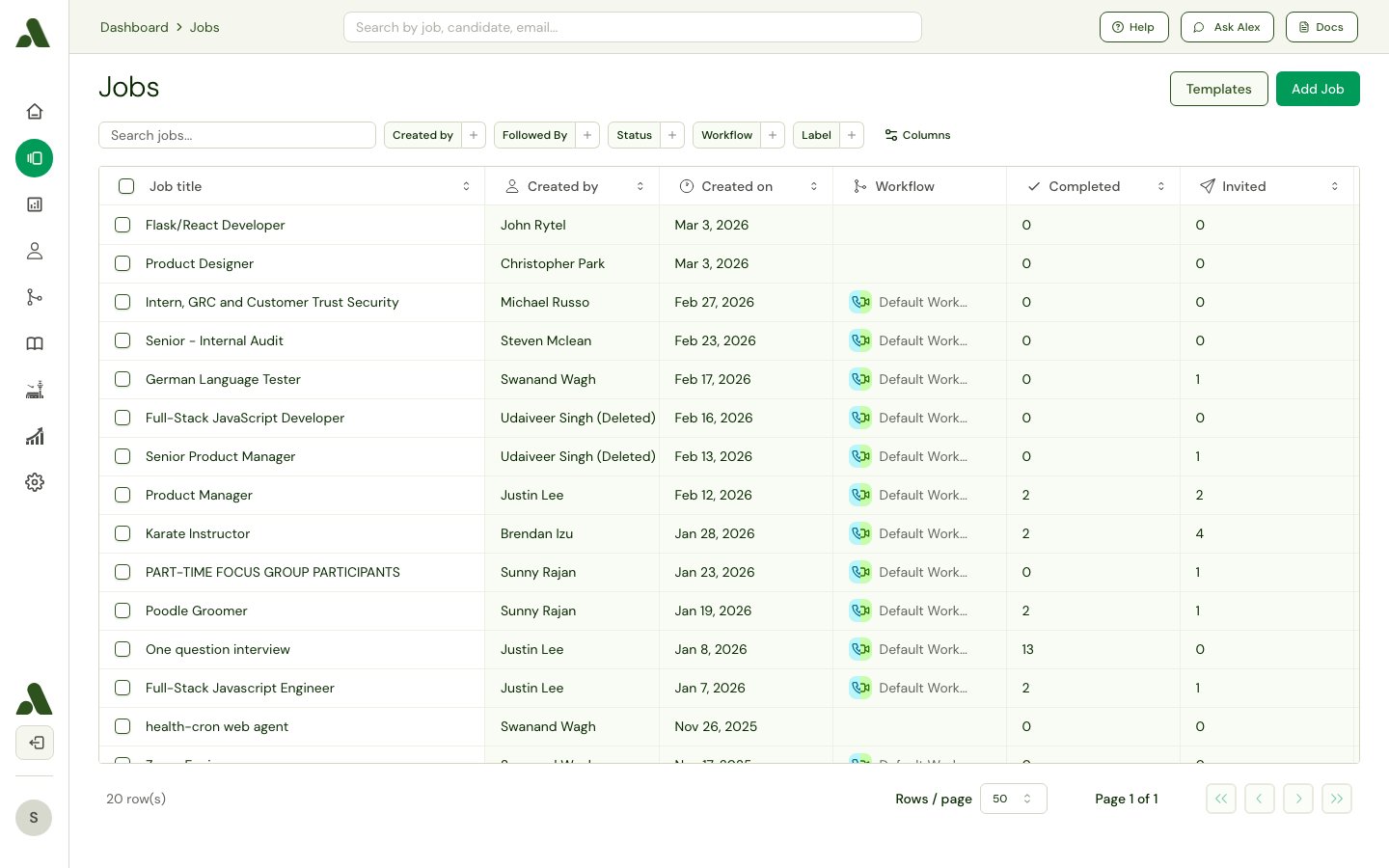
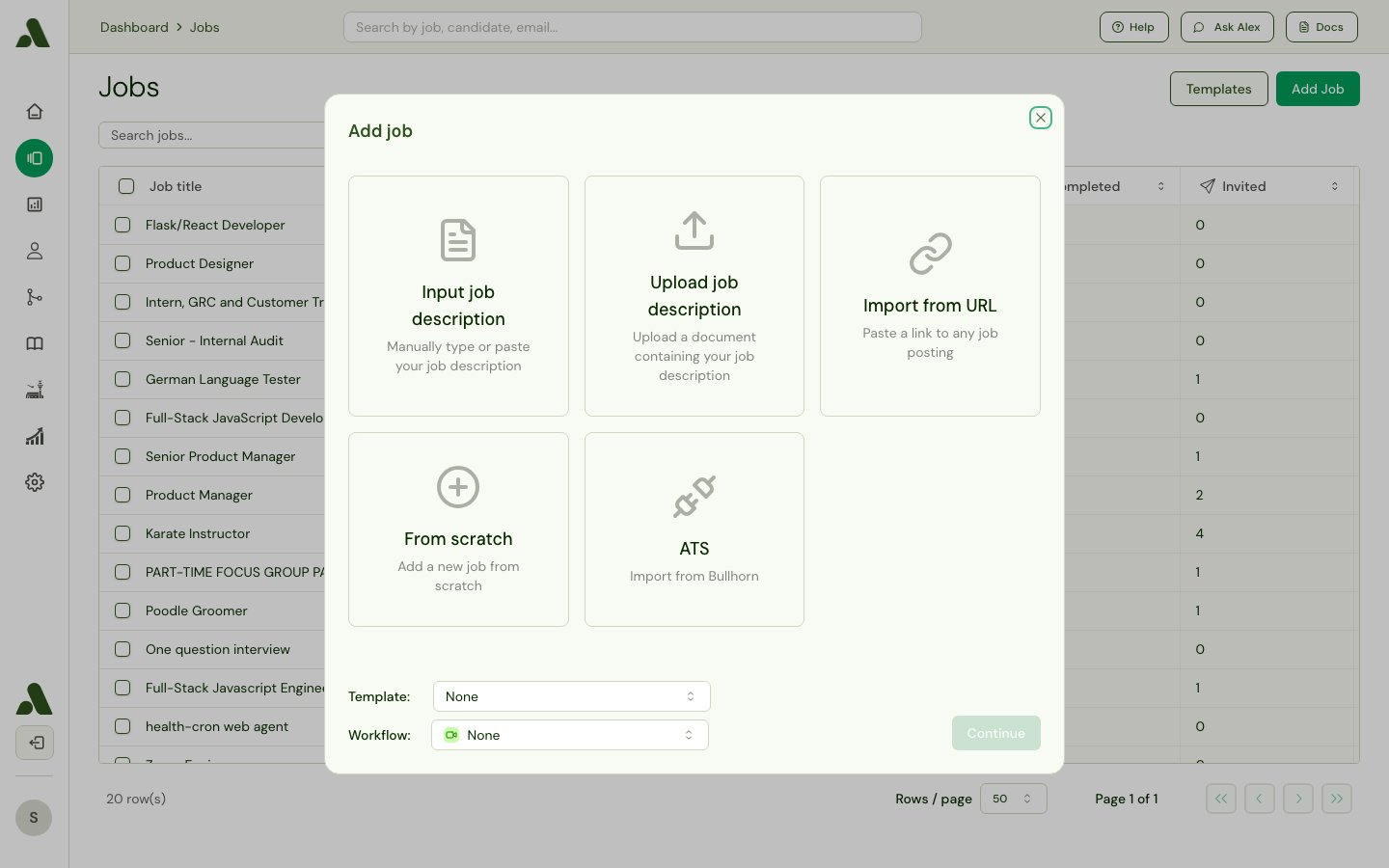
- From an ATS: If you have an Applicant Tracking System (ATS) connected, you can import jobs directly.
- From a URL: Paste a link to a job posting, and the system will extract the details to build the interview.
- With a Job Description: Paste a job description, and the AI will generate a relevant interview guide for you.
- From a Template: Use a pre-built template that includes questions, grading criteria, and other settings to get started quickly.
- From Scratch: Build an interview from the ground up, configuring every detail yourself.
Step 2: Define the Core Interview Details
Once you’ve started, you can configure the main components of the interview. Providing a Job Title and Job Description is key, as this information is used to generate a complete interview guide, including questions and scoring criteria.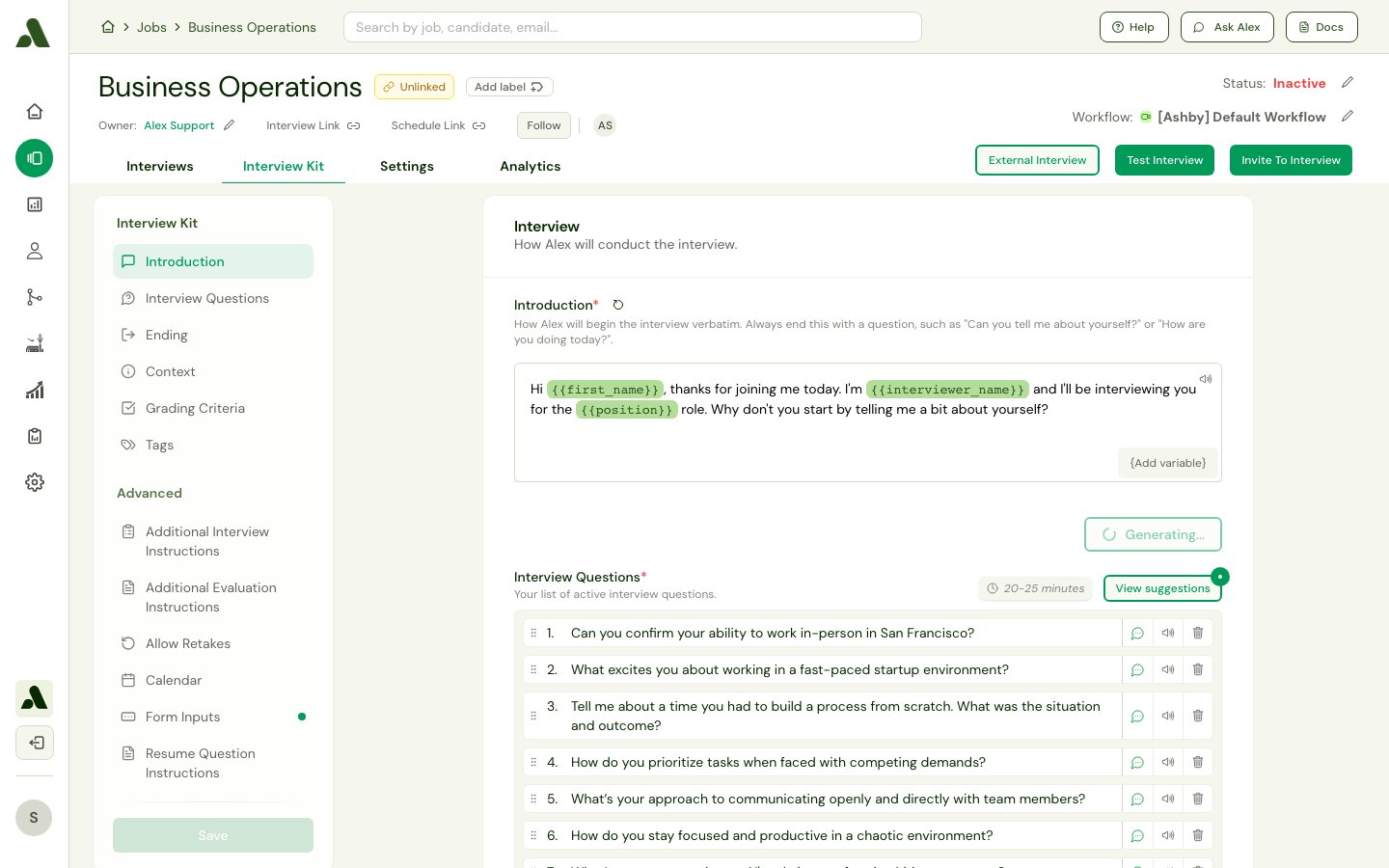
- Introduction: This is the opening message the AI interviewer will use to greet the candidate. You can customize this message and use variables like
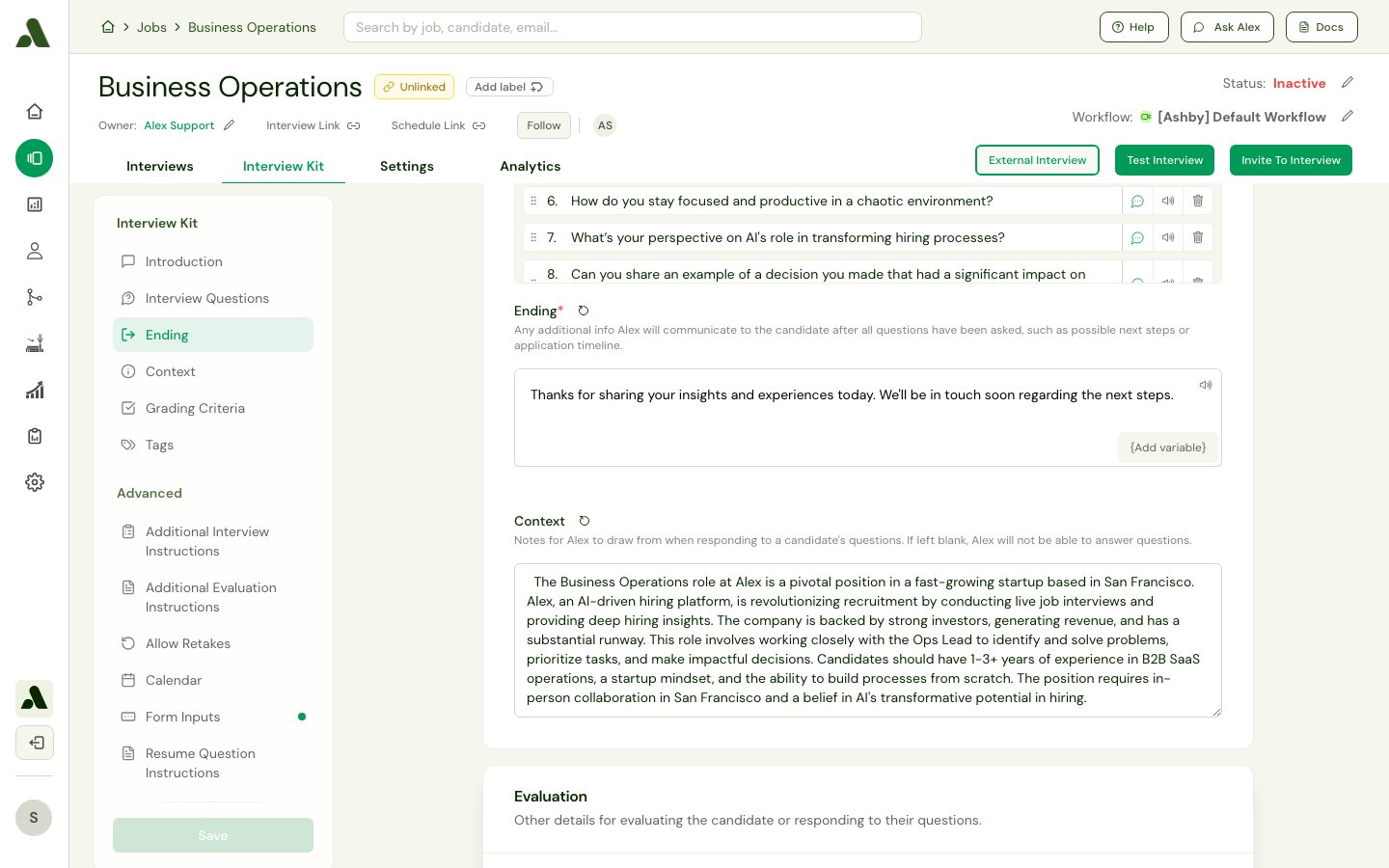
{{first_name}}and{{position}}to personalize it. - Ending: This is the closing message the AI interviewer will deliver to conclude the conversation.
- Context: Provide key details about the role, such as salary, location, or team structure. The AI interviewer uses this information to answer questions the candidate might ask at the end of the interview.
- Interview Creation Notes: You can add specific notes to guide the AI on how to generate the interview questions and criteria. For example, you could ask it to “focus on leadership skills” or “keep the interview brief.”
Step 3: Adjust Advanced Settings
You can fine-tune the interview experience with several advanced options.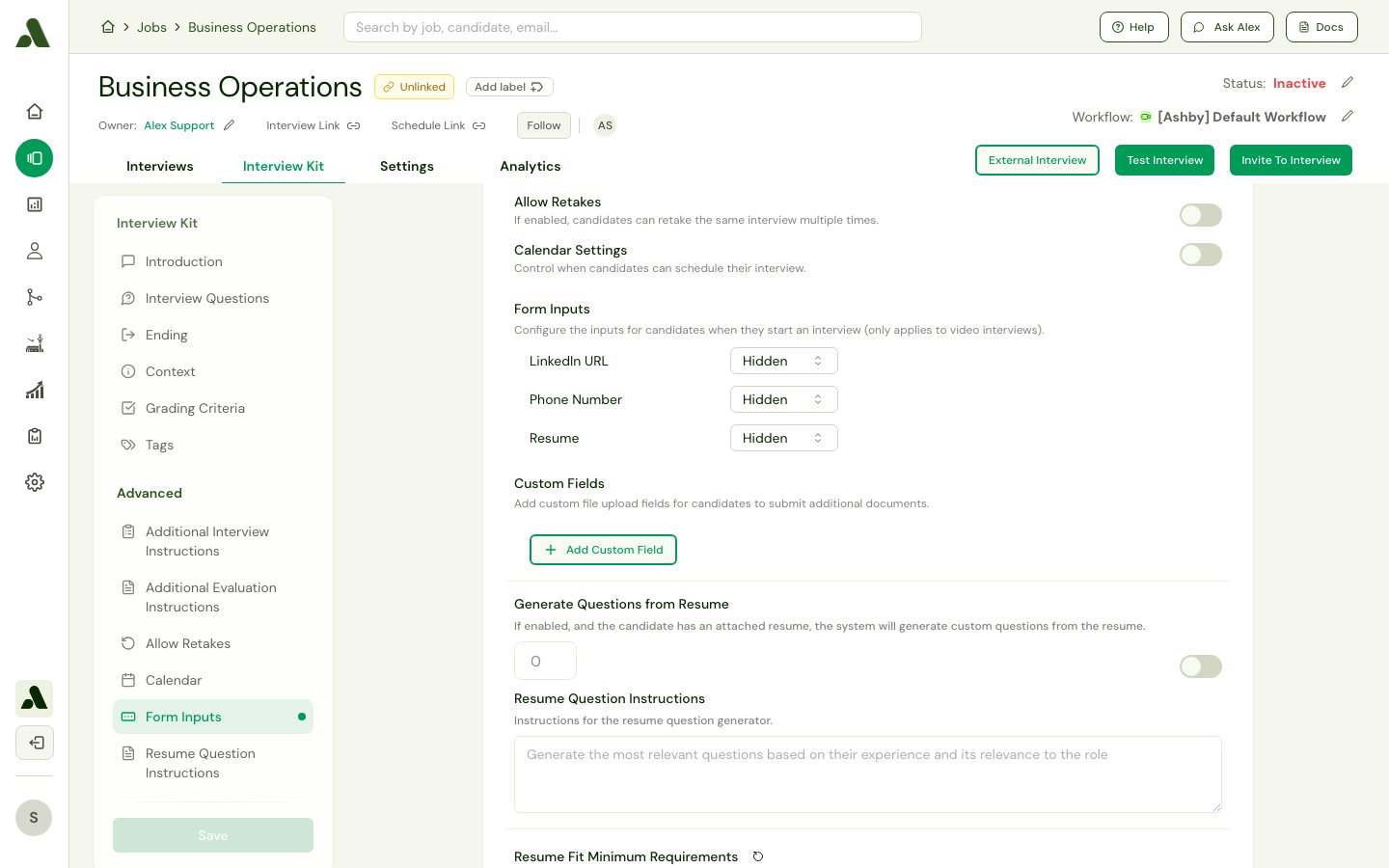
- Allow Retakes: Decide if candidates are allowed to retake the interview.
- Scheduling Window: Control how far in advance candidates can schedule their interviews.
- Candidate Form Inputs: Configure the information you collect from candidates before the interview, such as their resume, phone number, or LinkedIn profile.
Configure Interview Questions
Tailor the questions to ensure you’re assessing the right skills for the role.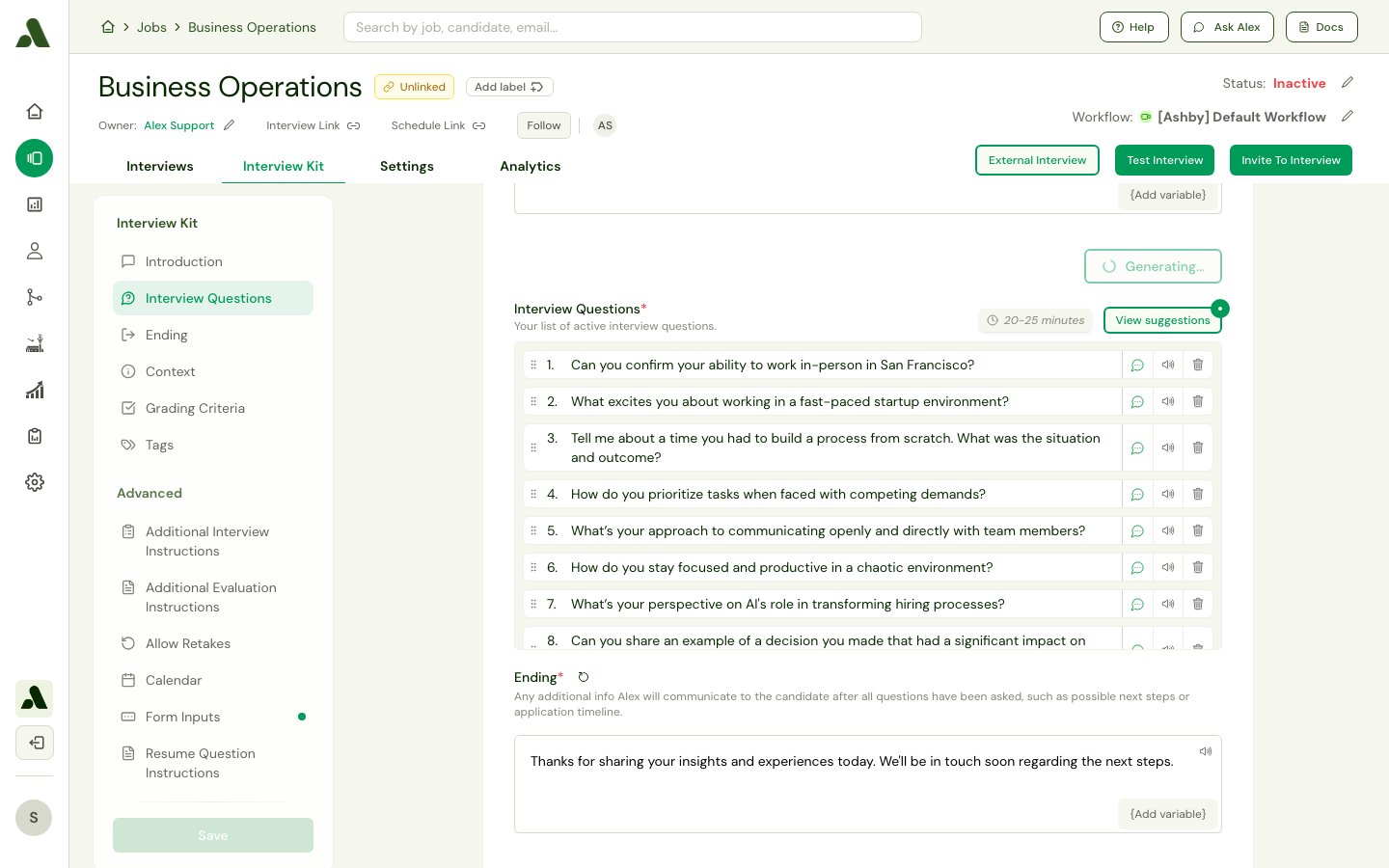
AI-Generated Questions
Based on the job description you provide, the system automatically generates a set of relevant interview questions. These questions are categorized into two types:- Informational: These are simple logistical questions about topics like work authorization, location, or required certifications.
- Knowledge: These are behavioral or technical questions designed to evaluate a candidate’s skills, experience, and problem-solving abilities.
Use an Interview Template
Templates are a great way to standardize your interviews. A template can come pre-loaded with a specific set of questions, which you can then use as a starting point for your new interview.Add Your Own Questions
If you have specific questions you want to include, you can add them to the interview. The system will integrate your custom questions alongside the AI-generated ones.Generate Questions from a Resume
You can enable the system to generate questions based on a candidate’s resume.- Enable Resume Questions: Turn this feature on to activate it.
- Set Question Count: Specify the number of questions you want the AI to generate from the resume.
- Provide Instructions: Give the AI instructions on what to focus on when creating questions from the resume, such as “Generate questions about their experience with React.”
Establish Grading Criteria
Set up a clear and consistent scoring system to evaluate candidates objectively.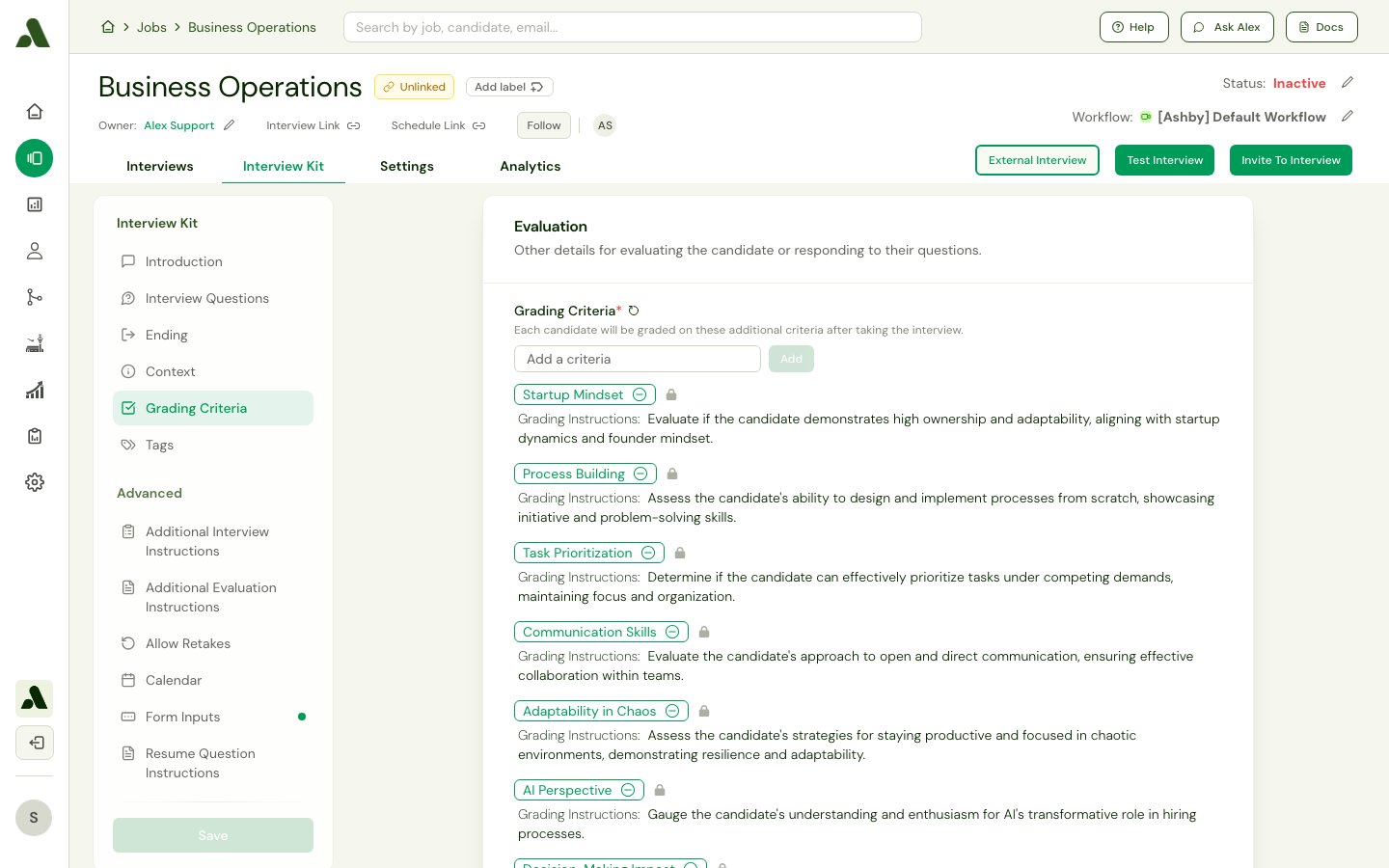
Scoring Criteria
The system automatically generates a set of Grading Criteria (also known as skills) based on the knowledge-based questions in the interview. Each criterion includes:- Name: The name of the skill being evaluated (e.g., “Problem Solving”).
- Evaluation Instructions: A brief description to help graders understand what to look for when scoring the candidate on that skill.
Question Rubrics
Each generated question comes with a rubric, which provides a checklist of what a good answer should include. This helps ensure that all candidates are evaluated consistently.Tags
Tags are used to capture key information from a candidate’s answers to Informational questions. For example, a tag for “Work Authorization” might have options like “Yes” or “No,” allowing you to easily filter and compare candidates based on their responses.Score Thresholds
You can set score thresholds to define what constitutes a “Shortlist” or “Reject” recommendation. This is based on the candidate’s final score, helping you quickly identify top performers.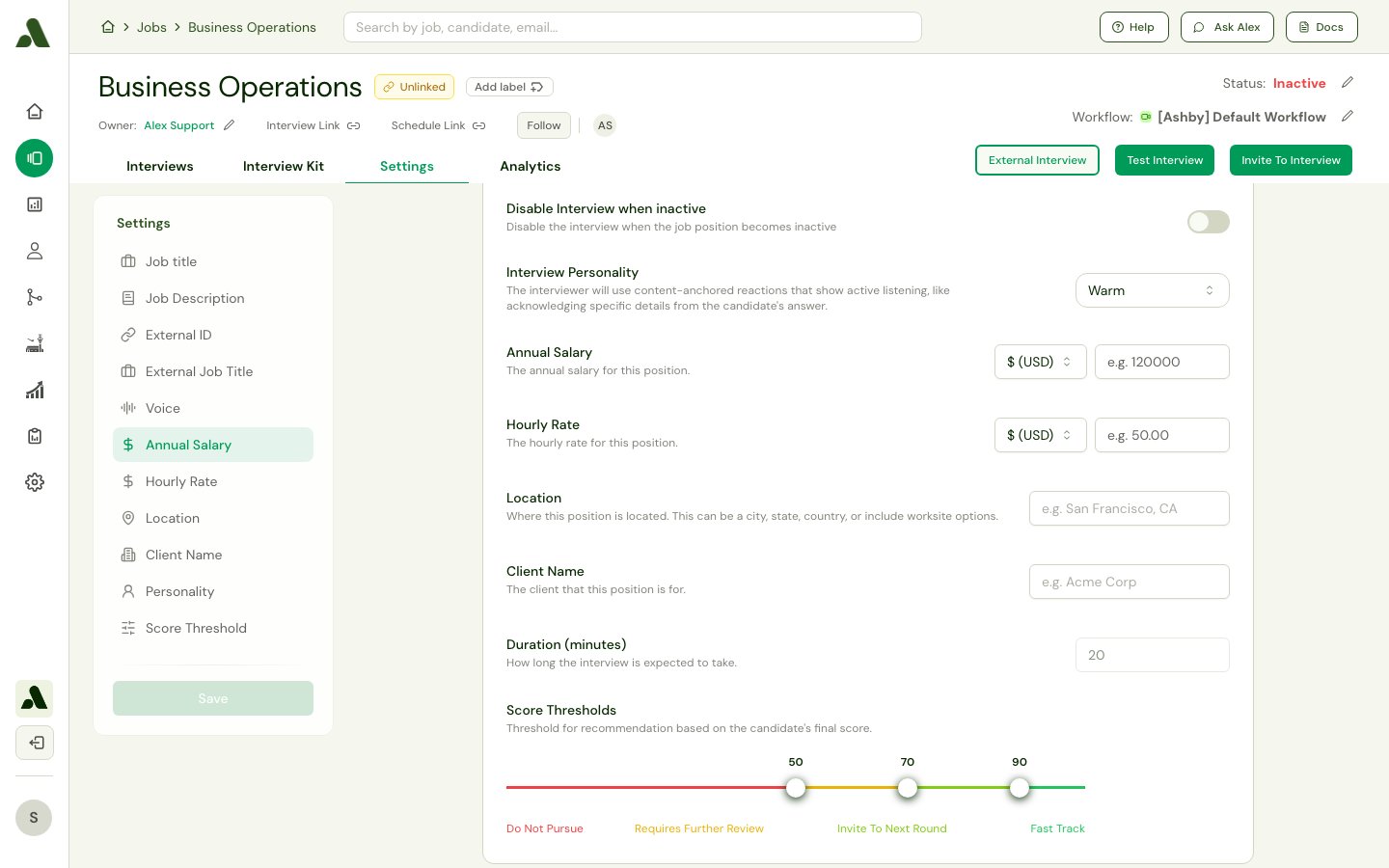
Resume Fit
If you collect resumes, you can configure how they are scored.- Minimum Requirements: Define the essential qualifications for the role. The system uses these requirements to score how well a candidate’s resume aligns with the job.
- Additional Instructions: Provide extra notes to guide the AI in scoring resumes, such as “Do not score candidates above 50 if they are not in the required location.”