

Structure
An application workflow is organized by rounds. At the top of the editor, you’ll see tabs for each round (Round 1, Round 2, etc.). Each round tab contains the blocks that define what happens during that stage of the interview process. Within each round, you build blocks. A block is a sequence that starts with a trigger and is followed by one or more actions. Each round can have multiple blocks, but you can only have one block per trigger per round. For example, Round 1 can have one “Interview Completed” block — not two. However, across different rounds, triggers can absolutely repeat. You can have an “Interview Completed” block in Round 1 and an “Interview Completed” block in Round 2, each with different actions.Building Blocks
Every block follows the same pattern:- Trigger — the event that starts the block (drag one from the left sidebar)
- Actions — the steps Alex takes in response (drag and connect below the trigger)
Example: New Applicant Block
This block fires when a new application comes in, filters the candidate in the ATS, adds a note, and then starts outreach via an Initiate Outreach group — which contains a sequence of emails, SMS, and waits to get the candidate to schedule.Example: Interview Completed Block
This block fires when a candidate finishes an interview, then writes data back to the ATS (updating a submission field, adding a note, and uploading the report), and finally notifies the recruiter and candidate.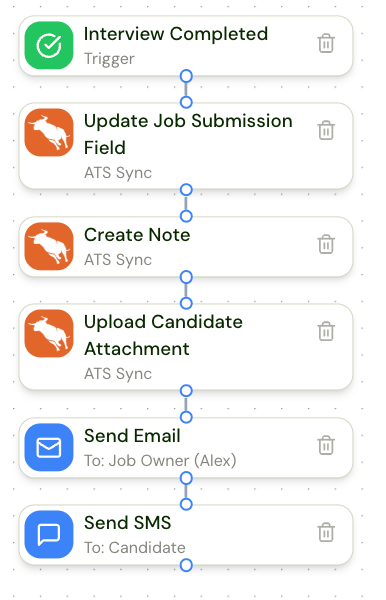
Outreach with Initiate Outreach
The Initiate Outreach group is a special container — it holds its own sequence of outreach steps inside it. This is where you configure how Alex reaches out to candidates for a specific round. Inside an Initiate Outreach group, you can place a sequence of:- Send Email — send an email invitation
- Send SMS — send a text message
- Phone Call — have Alex call the candidate
- Wait — pause for a specified amount of time before the next step
- Send an email invitation
- Wait 1 hour
- Call the candidate
- Wait 2 hours
- Send an SMS reminder
Conditional Logic
Use utility actions to add branching logic to your workflow:- Filter By Application / Candidate / Job — query your ATS to check conditions against the candidate, job, or application entity, then branch into Yes/No paths
- Is — check conditions against Alex’s native fields (score, name, location, etc.) and branch accordingly
Settings
The Settings tab on the workflow controls global configuration that applies across all rounds:- Outreach Hours — prevent Alex from contacting candidates outside of specified hours (a blackout window for outbound calls and texts).
- ATS Link — for candidates who come directly to Alex (not from the ATS), use Link Candidate to automatically match or create the candidate in your ATS, and Create Application to create the application entity. You can set the timing for when the application is created: right away (when invited), when the candidate engages, or only after the interview completes. This is only available when an ATS is connected.
Initiate Outreach and Round Progression
A round’s outreach lives inside an Initiate Outreach group, and round changes are handled by the Move to Round utility:- Initiate Outreach — a container that holds the round’s outreach steps (see Outreach with Initiate Outreach above). On an AI interview round it invites the candidate to the interview; on a human round it sends a scheduling link and hands the candidate off to the assigned recruiter or hiring manager. If multiple interviewers are assigned, the candidate sees a unified availability view and the interview is round-robined based on who is free. Human rounds require the Coordinator add-on — see Coordinator for details.
- Move to Round — moves the candidate to another round in the interview process.