

Table of Contents
Table of Contents
- General - Company Logo - Team Members - Email Notification Toggle - Interviews - AI Interviewer Setup - Default Interview Template - Cheat Detection Threshold - Interview Schedule Notifications - Video Interview Welcome Message - Accommodation Requests - Global Interview Context - Labels - Job Generation - Billing - PDF Settings - Profile
General
Manage key team settings and customize your candidate-facing branding.- Company Logo: Upload your company logo to display on reports and during the interview. PNG only (recommended size: 300px x 300px).
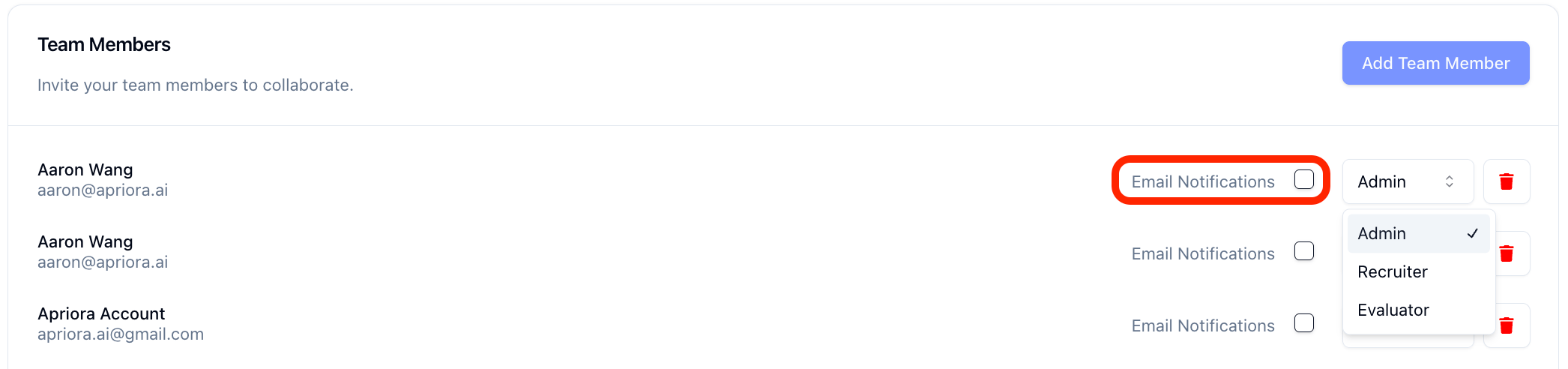
- Team Members: Invite your team to collaborate on interviews. There are three user roles:
- Admin: Full access, including Settings and Billing.
- Recruiter: Can create/edit/delete jobs and view reports, but cannot access Settings.
- Evaluator: View-only access for reviewing interviews and reports.
- Email Notification Toggle: Enable email notifications for any team member to receive updates when an interview is completed for a job they own on Alex.
💡 Tip: You’ll see your user limit listed at the bottom of the page. If you ever need more seats, email Aaron (aaron@alex.com) and we’ll get you taken care of!
Interviews
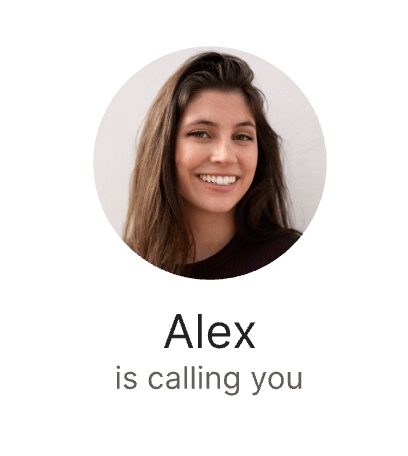
Define default settings that apply to all newly created interviews - helping your team stay consistent and save time. AI Interviewer Setup- Interviewer Name: Set the name the AI interviewer will use during candidate conversations. The default is Alex, but you can change it to whatever you’d like.
- Interviewer Profile Picture: Upload a photo (PNG, 300x300px recommended) that candidates will see during video interviews.
- Interviewer Voice: Choose which voice Alex will use for interviews. Options include various accents and tones.
- Interview Personality: Choose between a Warm personality, which uses content-anchored reactions to show active listening, or a Neutral personality, which uses brief transitions without evaluative language.
“Hi, I’m Alex, and I’ll be guiding you through your interview today…”Core Questions:
- Tell me a bit about yourself and your professional background.
- Why are you interested in this role?
- Can you share a time you solved a difficult problem at work?
- What are you looking for in your next opportunity?
“Thanks for sharing! Do you have any questions for me about the company or the role?”Cheat Detection Threshold Set a threshold between 0–100 to flag interviews with potential cheating behavior.
For example:
40 = Any interview scoring 40 or above will be flagged for review.
Cheat Detection monitors for signals like:
- Background voices
- Excessive tab switching
- Unusual delays before answering
🚨 Don’t see this setting?Interview Schedule Notifications Turn on notifications so you can get notified when candidates schedule their interviews.
Cheat Detection is an add-on feature that helps you hire with more confidence by surfacing potential red flags in candidate behavior. Reach out to aaron@alex.com to learn more.
Note: Users must have email notifications enabled under General Settings. Video Interview Welcome Message Customize the message candidates see before beginning their video interview. This is a great opportunity to set expectations and help them feel comfortable. Example:
Welcome to your AI Interview!You can update this to reflect your company’s tone and candidate experience goals. Accommodation Requests Set an email address for candidates needing interview accommodations. Global Interview Context This is where Alex pulls information from when responding to candidate questions during interviews. Use this space to add company-wide information that applies across all jobs - Alex will be able to reference it in every interview if asked. Each job also has a job-specific context box (in the interview guide), which is ideal for adding role-specific details. Think of Global Interview Context as the “about us” section that lives in every interview. What to Include:
Here’s how it works:Take a breath, be yourself, and good luck!
- Alex, your AI interviewer, will guide the conversation.
- When Alex finishes speaking, it’s your turn to respond.
- After 2 seconds of silence, your response will automatically end.
- You’ll move naturally through the interview - just like a real conversation.
- If you have any questions during the interview, feel free to ask Alex!
- Company mission and values
- Interview process overview
- Office locations and working model (e.g. remote/hybrid)
- General benefits or culture notes
- What candidates can expect after the interview
“Alex helps teams hire faster by automating first-round interviews. We’re a fully remote team based in the U.S. with a focus on autonomy, ownership, and speed. After this interview, your responses will be reviewed by a recruiter and you may be contacted for next steps.”
Alex will use this info to answer questions like:
“What happens after this interview?”
“Can you tell me more about the company?”
“Where is this role based?”
Labels
Organize and categorize interviews in a way that makes sense for your team. Labels are completely customizable and help you filter, track, and manage interviews more efficiently. Common Use Cases:- Staffing Agencies: Tag interviews by client (e.g.
Nike,PepsiCo,Amazon) - Recruiting Teams: Label by department (e.g.
Engineering,Marketing,Sales) - Hiring Goals: Use tags like
Urgent,High Volume, orInternship - Role Type: Tag interviews by level or type (e.g.
Senior,Entry-Level,Freelance)
💡 Tip: The more consistent your labels, the easier it is to sort and analyze interview activity across your organization.
Job Generation
If you’re using an ATS integration, you can configure a Job Workflow to automatically create jobs and interviews in Alex when a new job is created in your ATS. What it does:- When a job is created in your ATS, Alex automatically creates a matching job on the platform using your configured trigger and settings.
- Any candidates who apply to that job will automatically receive an invitation to complete an Alex interview (depending on your Application Workflow).
- This allows your team to scale effortlessly - no need to manually create jobs or send invites.
💡 Example: If you create a Software Engineer job in Loxo, Alex can instantly generate the same job and send out interviews to applicants, with no extra steps.Job Generation Settings: Job generation is now configured directly in the Workflows tab by creating a “Job Workflow.” Within the Job Workflow, you can use the New Job from ATS trigger and Configure Job node to define:
- Initial Status in Alex: The status Alex will assign to generated jobs (e.g.
ActiveorInactive). - Application Workflow: The default workflow used to handle interviews for generated jobs.
- Title & Description Source: The ATS fields Alex reads to set the job title and description. Description Source accepts multiple fields — each field’s value is appended in the order listed to build the full description, and fields with no value on the job are skipped.
- Question Mappings: Map specific ATS fields to pull custom interview questions from.
- Filters: Add rules to include or exclude jobs based on field values (e.g., only include jobs with
Status = Open).
- Use Question Mappings to pass extra context directly into the AI-generated interview questions.
- Apply Filters in your trigger to avoid creating interviews for internal roles, closed reqs, or test jobs.
- Select a Default Template to ensure consistent candidate experience across all generated jobs.
Billing
Manage payment details and track interview usage.- Add a Payment Method: Securely add or update your payment information for monthly billing.
- Monitor Usage: View the total number of interviews completed and the number remaining in your monthly allotment.
💡 Tip: If you’re consistently approaching your limit or expect a spike in usage, reach out to aaron@alex.com to explore plan options or add-ons.
PDF Settings
Customize the layout and content of candidate PDF reports generated by Alex. How It Works- Toggle On/Off: Choose which elements to include or exclude from the PDF report.
- Drag & Drop: Rearrange the order of elements to match your preferred layout.
- Skill Report: Includes a breakdown of the key skills evaluated and how the candidate performed in each area.
- Question Report: Shows the list of interview questions and the candidate’s responses.
- Video Recording: Embeds a playable video of the interview (if applicable).
- Interview Transcript: Provides a written transcript of the entire interview.
- Candidate Feedback: Displays any feedback the candidate provided at the end of the interview.
💡 Tip: Tailor the report format to match your internal review process or shareable formats for hiring managers.
Profile
View and update your personal account information. What You Can Do- Edit Name: Update your first & last name.
- View User Type: See whether you’re an Admin, Recruiter, or Evaluator.
- Manage Notifications: Enable or disable email notifications based on your preferences.
💡 Tip: If your email address needs to be changed, contact your admin or reach out to Aaron (aaron@alex.com) for help.