

Reply needed
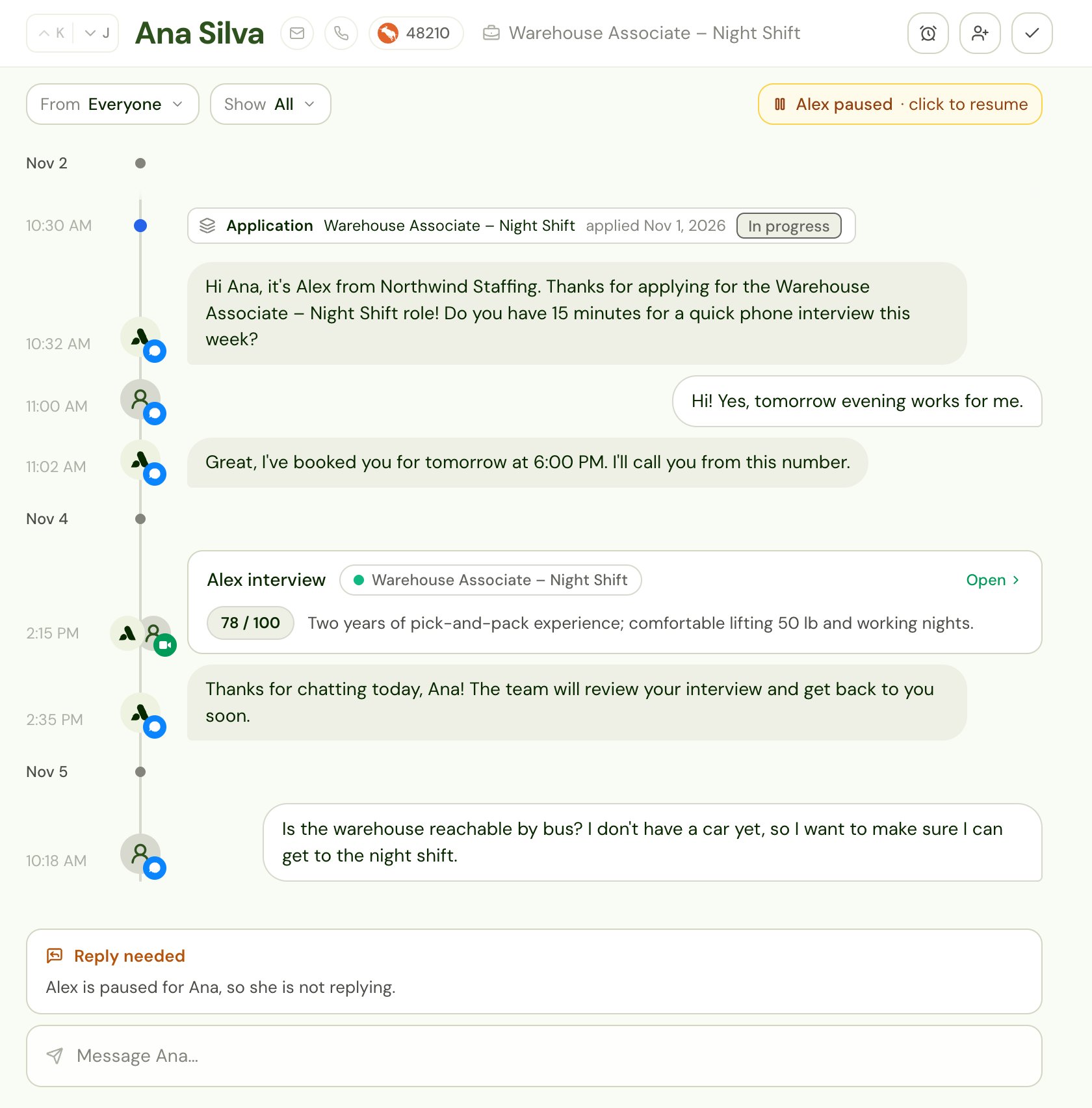
Opens when a candidate sends a text, WhatsApp message or email while Alex is paused for them. While Alex is paused, Alex holds the message instead of answering it. Shows in Assigned to me for whoever sent the candidate the last message before theirs (it’s assigned to them, if they can work the item; when Alex sent it, nobody), and in My jobs for everyone who owns or follows the job.How to work it
You see the full conversation with the candidate, with the Reply needed note above the message box. It says Alex is paused for this candidate, so Alex isn’t replying.- To answer yourself, write your reply in the message box and send it by text, WhatsApp or email. Sending closes the item as Replied.
- To hand the conversation back to Alex, resume Alex. You can do that from the conversation, or with Mark complete (see Mark complete on a reply). Resuming closes the item as Alex resumed.
What closes it
Your workflows’ item types (Send to Inbox)
Opens when a candidate reaches a Send to Inbox step in a job’s workflow, or in a candidate workflow. Each step picks one of your company’s item types, such as “Reference check” or “Salary over range”. Admins set the types up under Item types on the Company tab of Settings → Inbox (see Set up the Inbox), and anyone who edits workflows can add one from the step itself. A type has three things:- a name, which is what the list shows for every item of that type, and what people filter and hide by,
- a note, with what to look at or do, such as “Ask whether the shift premium closes the gap.” It can use variables, such as the candidate’s first name, which are filled in for each candidate, and
- a right panel: the candidate’s Conversation, or their interview Report.
How to work it
The note above the panel says From your workflow and the type’s name, for example From your workflow · Reference check, with the type’s note below it. Beside it you see either:- the conversation, so you can reply to the candidate by text, WhatsApp or email, or
- the interview report, for a type whose right panel is Report.
Set up a Send to Inbox step
- Open the job’s workflow, or your candidate workflow, and add Send to Inbox from Actions, at the point where a person should take over. For example, after an Is check that a candidate’s expected salary is above the range.
- Pick its Type. To add one, choose Create type… at the bottom of the list, fill in the name, note and right panel, and choose Create and use.
- Optionally, choose Resolve when (below).
- Save the workflow.
Steps added before item types keep working as they were: their items show as Follow up, with the step’s own title as the line and its own note and right panel. The step shows a reminder to pick a type, but the workflow still saves and publishes without one. Once you pick a type, the step uses the type’s name, note and right panel instead.
Resolve when
Resolve when says what should close the item without anyone marking it complete. Tick as many as you like. The item closes as soon as any one of them happens. Leave them all unticked and nothing closes the item on its own.
A step in a candidate workflow offers only Someone on the team messages the candidate and Nobody acts on it within…: its item has no application, so no decision or round change can close it.
Whatever you choose:
- Someone can always mark the item complete.
- The item resolves when the application is withdrawn or deleted.
Removing a type
An admin removes a type under Item types on the Company tab of Settings → Inbox. If any workflow step uses it, they pick another type to replace it, and every one of those steps changes to that type from then on, in published workflows and in drafts with unpublished changes. Candidates who were already partway through a workflow get the replacement when they reach the step. A draft nobody has changed yet keeps the old type: when someone next opens it, the step asks for a type. The removed type’s items, open and done, leave everyone’s Inbox: the list, the counts, the badge, the Type filter and My Preferences in Settings → Inbox. They aren’t deleted, and what people did with them stays in each candidate’s Activity. If the step runs again for a candidate, they get a new item with the replacement type.The rest of the workflow runs whatever the step does. It doesn’t add a candidate whose application was already withdrawn or deleted, unless the step runs because the candidate withdrew.
What closes it
A rejection doesn’t close it unless you ticked A decision is made: the step may still need someone, for example to let the candidate know why.
Older kinds that no longer open
Alex no longer adds an item on its own when a candidate asks for a person, asks for an accommodation, asks a question Alex couldn’t answer, or finishes the last interview round. The workflow decides what your team sees: add a Send to Inbox step where it happens, or an email step to tell someone. Items of these kinds that opened earlier still show, open or done, and you work them as before:- Asked for a person (Wants a person in the list): get in touch by text, WhatsApp, email or another way. Sending the candidate a message closes it as Replied; otherwise Mark complete.
- Asked for an accommodation (Accommodation in the list): the note shows what the candidate asked for. Sending the candidate a message closes it as Replied; otherwise Mark complete.
- Alex couldn’t answer (Question in the list): answer the candidate, add the answer to the job’s interview guide, or Mark complete. Sending the candidate a message closes it as Replied.
- Needs decision (Decide in the list): read the report and choose Reject or Shortlist in the decision bar, which needs Decisions: Can set. The decision closes the item as Decided, or Decided elsewhere when it syncs in from your ATS. Marking it complete closes it without a decision.
Shared reports show the Activity of the candidate like the rest of their Activity, with contact details removed, including the rows for these asks.