

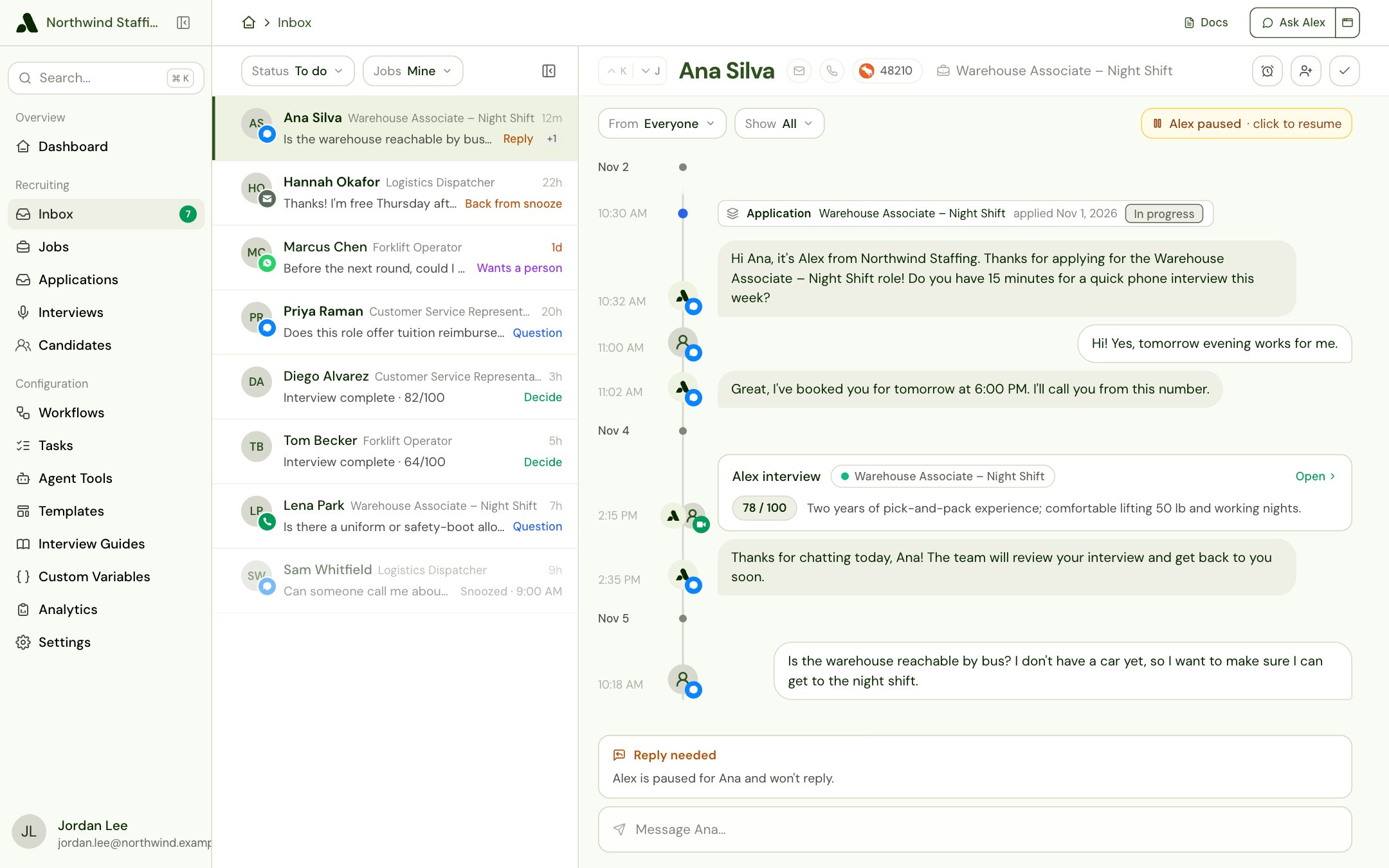
The Inbox is in pilot: your Alex team makes it available to you. Inbox shows in the sidebar once they have and your role includes it. Alex adds items for every company either way, so the Inbox already holds what needed a person when it appears. If you don’t see it, ask your admin whether your role includes it (see Permissions).
How the Inbox works
- Something happens that needs a person: a candidate replies while Alex is paused, or a candidate reaches a Send to Inbox step in a workflow.
- Alex adds an item for that candidate as soon as it happens.
- You open the item, see why it’s there, and act: reply, call, decide, or do what the item’s note asks.
- The item closes, either because of what you did or because you Mark complete. It moves to Done.
What is shared and what is yours
Everyone works the same items, but each person has their own place in them:- Closing an item closes it for everyone. When someone replies, decides or marks an item complete, it moves to everyone’s Done.
- Assigning an item puts it in the other person’s Assigned to me, and tells them by email. It stays open for everyone else, and for you too unless you take yourself off.
- Snoozing, reading and Mark To do are just for you. Nobody else’s list changes.
The kinds of item
Only two kinds open now:
Items come from Send to Inbox steps in your workflows. Alex no longer adds an item on its own when a candidate asks for a person, asks for an accommodation, asks something Alex couldn’t answer, or finishes their interviews. To see those in the Inbox, add a Send to Inbox step where that happens in your workflow.
Items of those kinds that were opened earlier still show in the list, as Wants a person, Accommodation, Question and Decide, and close the way they did before, except that a Decide item no longer closes when the candidate stops qualifying.
When a candidate has more than one item, the row leads with them in this order: Reply, Accommodation, Wants a person, Question, Decide, then what your workflows sent.
Item types covers each kind: what opens it, how to work it, and what closes it.
In this guide
Set up the Inbox
For admins: your company’s item types, and each person’s preferences.
Using your inbox
My jobs, Assigned to me, Done, snoozing, assigning and marking complete.
Item types
Reply needed, your workflows’ item types, and the older kinds that no longer open.
Permissions
Who can see their own items, who can see everyone’s, and what else they need.